Quick Start for Interactive Live Streaming in iOS
This guide shows you how to add interactive live streaming to your iOS app with VideoSDK. A live stream supports up to 100 hosts/co-hosts and 2,000 viewers in real-time.
Prerequisites
- Xcode, and an iPhone or iPad to run the app on.
App Architecture
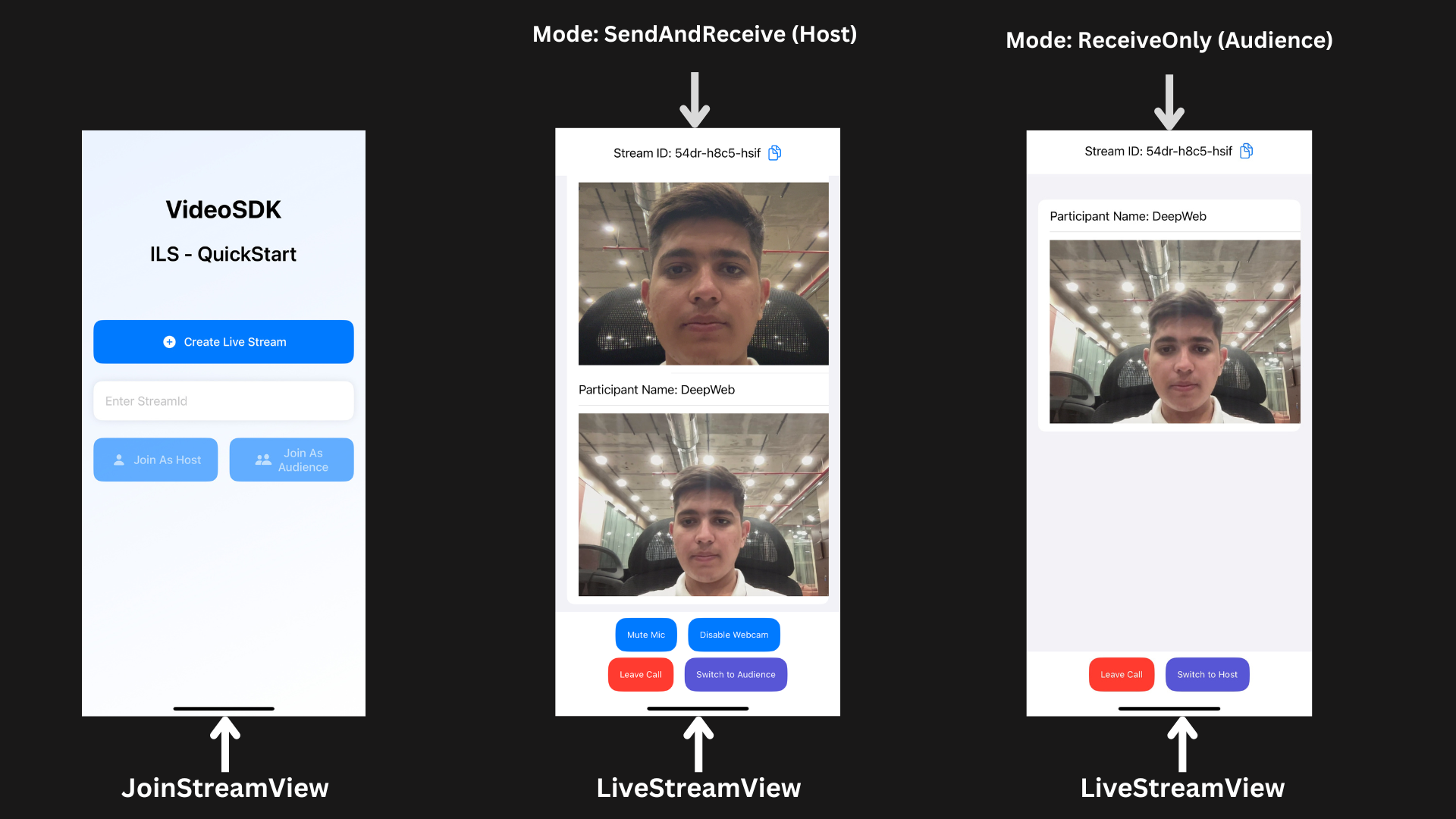
The application consists of two primary interfaces:
Join Stream View
- Allows users to create a new Live Stream or join an existing one with a stream ID and select their mode (Host or Audience)
Live Stream View
- Provides Live Stream controls and adapts the UI dynamically based on the user's mode (Host or Audience).
Getting Started With the Code!
Step 1: Create New iOS Application
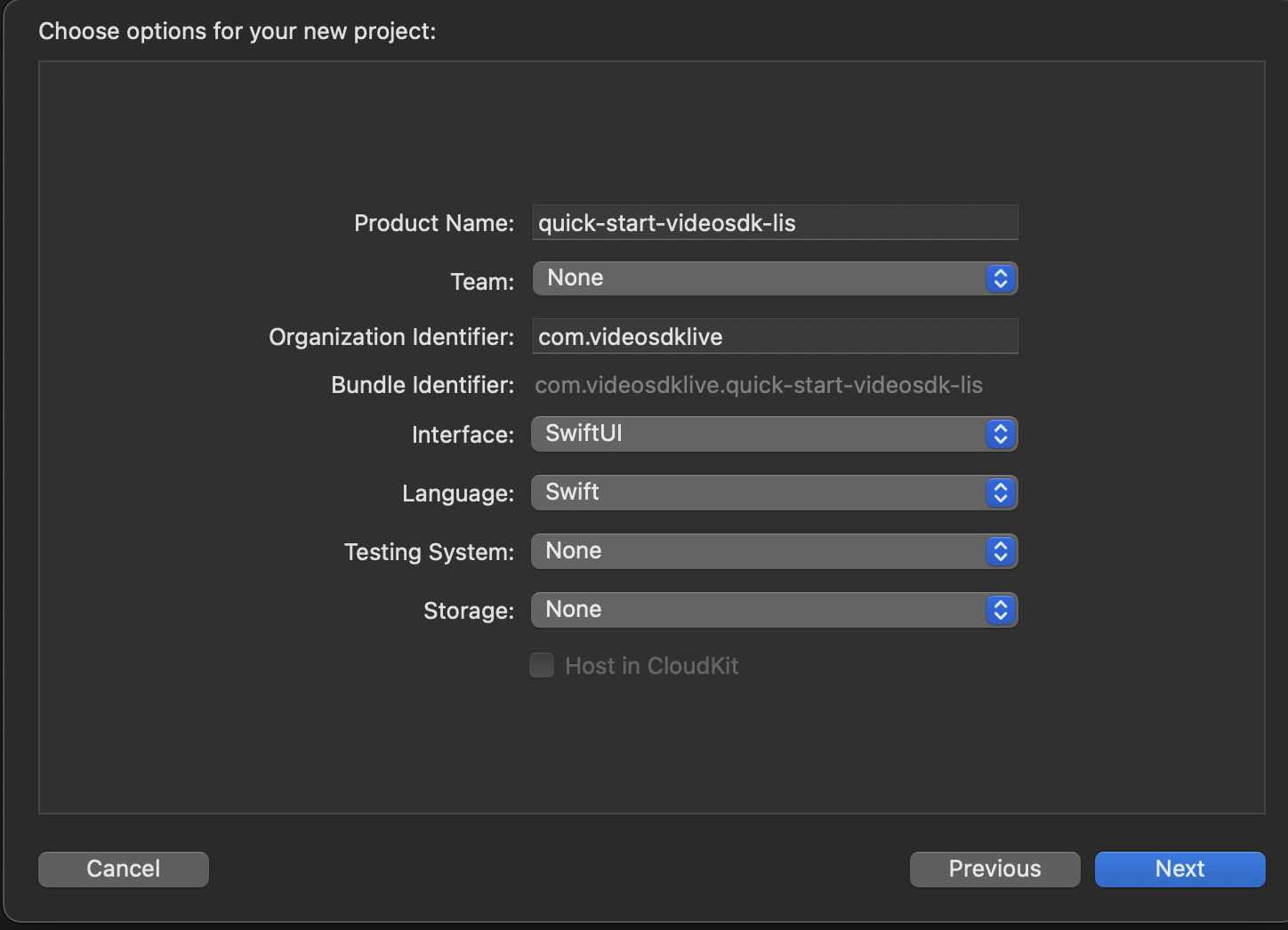
Step 1: Create a new application by selecting Create a new Xcode project
Step 2: Add Product Name and Save the project.
Step 2: VideoSDK Installation
VideoSDK 4.x is installed with Swift Package Manager (SPM). There is no 4.x CocoaPods release.
- Open your Xcode project and go to File > Add Package Dependencies….
- Enter the repository URL:
https://github.com/videosdk-live/videosdk-rtc-ios-spm
- Set Dependency Rule to Exact Version
4.0.0, and add theVideoSDKRTCSwiftproduct to your app target. - Import the library in Swift files:
import VideoSDKRTC
For more details, refer to the official guide on SPM installation.
Then declare the permissions in Info.plist:
<key>NSCameraUsageDescription</key>
<string>Camera permission description</string>
<key>NSMicrophoneUsageDescription</key>
<string>Microphone permission description</string>
Step 3: Project Structure
quick-start-videosdk-lis
   ├── quick-start-videosdk-lis.swift // Default
   ├── Screens
		├── JoinStreamView
	            └── JoinStreamView.swift
        ├── LiveStreamView
	            └── LiveStreamView.swift
                └── LiveStreamViewController.swift
   └── Info.plist // Default
Step 4: Create JoinStream View
The JoinStreamView acts as the entry point for users to initiate or participate in Live Streams with the following functionalities:
-
Create Live Stream as Host: Start a new Live Stream in
SEND_AND_RECVmode, providing full host privileges. -
Join as Host: Enter an existing Live Stream using a stream ID with
SEND_AND_RECVmode, granting full host controls. -
Join as Audience: Join an existing Live Stream using a stream ID with
RECV_ONLYmode, offering view-only access.
- Swift
import SwiftUI

struct JoinStreamView: View {
    @State var streamId: String
    @State var name: String

    var body: some View {
        NavigationView {
            ZStack {
                // Background gradient
                LinearGradient(colors: [.blue.opacity(0.1), .white],
                             startPoint: .topLeading,
                             endPoint: .bottomTrailing)
                    .ignoresSafeArea()

                VStack(spacing: 24) {
                    Text("VideoSDK")
                        .font(.largeTitle)
                        .fontWeight(.bold)
                        .padding(.top,80)

                    Text("ILS - QuickStart")
                        .font(.title)
                        .fontWeight(.semibold)
                        .padding(.bottom,50)

                    // Create Room Button
                    HStack {
                        NavigationLink(
                            destination: LiveStreamView(userName: name.isEmpty ? "Guest" : name, mode: .SEND_AND_RECV)
                                .navigationBarBackButtonHidden(true)
                        ) {
                            ActionButton(title: "Create Live Stream", icon: "plus.circle.fill")
                        }
                        .padding(.horizontal)
                    }

                    // Stream ID input
                    HStack {

                        TextField("Enter StreamId", text: $streamId)
                            .textFieldStyle(.plain)
                            .autocorrectionDisabled()

                        if !streamId.isEmpty {
                            Button(action: { streamId = "" }) {
                                Image(systemName: "xmark.circle.fill")
                                    .foregroundColor(.gray)
                            }
                        }
                    }
                    .padding()
                    .background(
                        RoundedRectangle(cornerRadius: 12)
                            .fill(.white)
                            .shadow(color: .black.opacity(0.1), radius: 5)
                    )
                    .padding(.horizontal)

                    // Buttons Stack
                    VStack(spacing: 16) {

                        HStack(spacing: 16) {
                            NavigationLink(destination: {
                                if !streamId.isEmpty {
                                    LiveStreamView(streamId: streamId,
                                              userName: name.isEmpty ? "Guest" : name,
                                                     mode: .SEND_AND_RECV)
                                        .navigationBarBackButtonHidden(true)
                                }
                            }) {
                                ActionButton(title: "Join As Host", icon: "person.fill")
                                    .opacity(streamId.isEmpty ? 0.6 : 1)
                            }
                            .disabled(streamId.isEmpty)

                            NavigationLink(
                                destination: LiveStreamView(
                                    streamId: streamId,
                                    userName: name.isEmpty ? "Guest" : name,
                                    mode: .RECV_ONLY
                                )
                                .navigationBarBackButtonHidden(true)
                            ) {
                                ActionButton(title: "Join As Audience", icon: "person.2.fill")
                                    .opacity(streamId.isEmpty ? 0.6 : 1)
                            }
                            .disabled(streamId.isEmpty)
                        }
                    }
                    .padding(.horizontal)

                    Spacer()
                }
            }
        }
    }
}

struct ActionButton: View {
    let title: String
    let icon: String

    var body: some View {
        HStack {
            Image(systemName: icon)
                .frame(width: 24, height: 24)
            Text(title)
                .font(.system(size: 16))
                .fontWeight(.medium)
                .multilineTextAlignment(.center)
                .lineLimit(2)
        }
        .frame(maxWidth: .infinity, minHeight: 60)
        .padding(.horizontal)
        .background(
            RoundedRectangle(cornerRadius: 12)
                .fill(Color.blue)
        )
        .foregroundColor(.white)
    }
}
Output
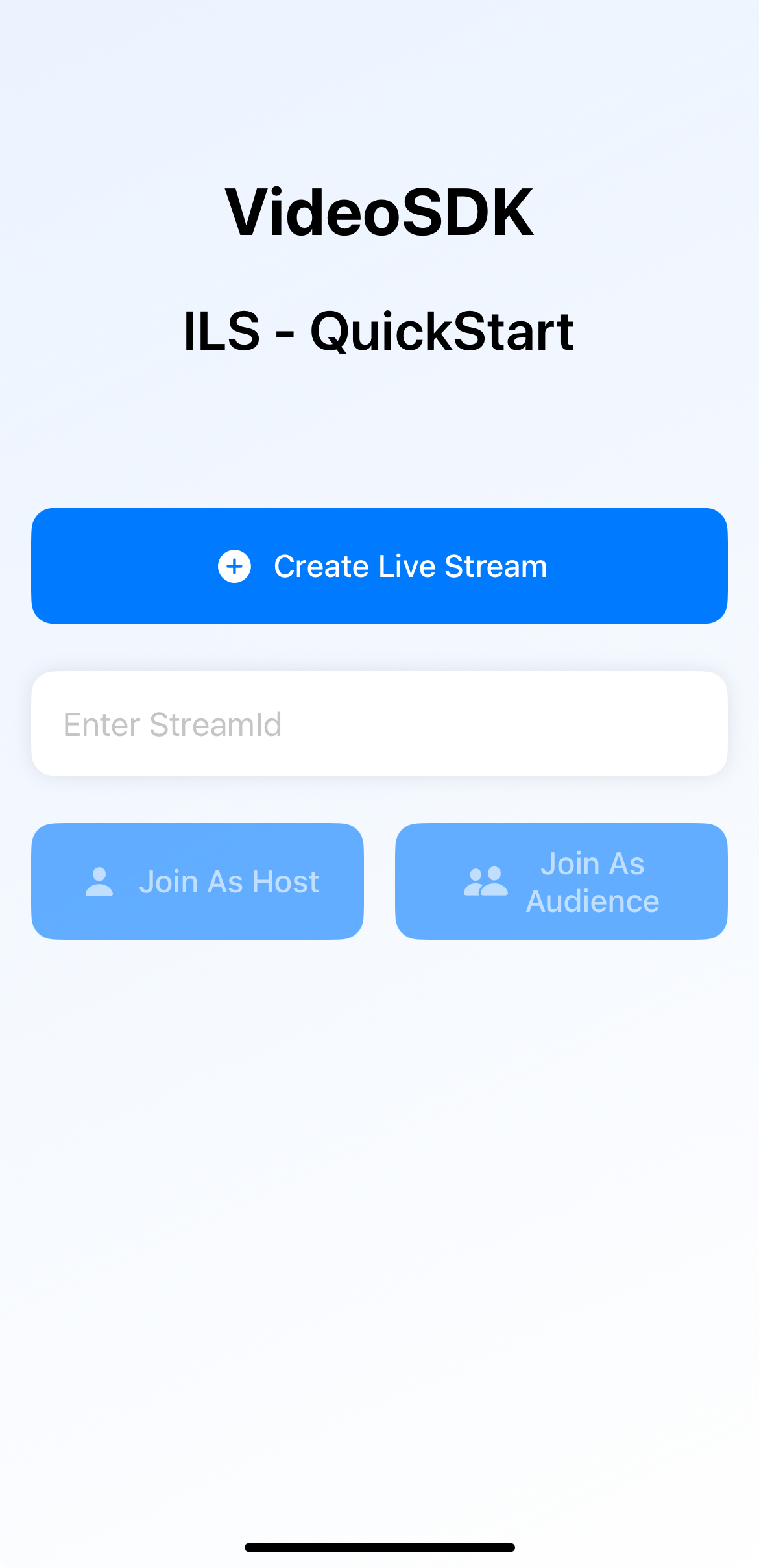
Also add the JoinStreamView in main app as shown below
- Swift
import SwiftUI

@main
struct quick_start_videosdk_lis: App {
    var body: some Scene {
        WindowGroup {
            JoinStreamView(streamId: "", name: "")
        }
    }
}
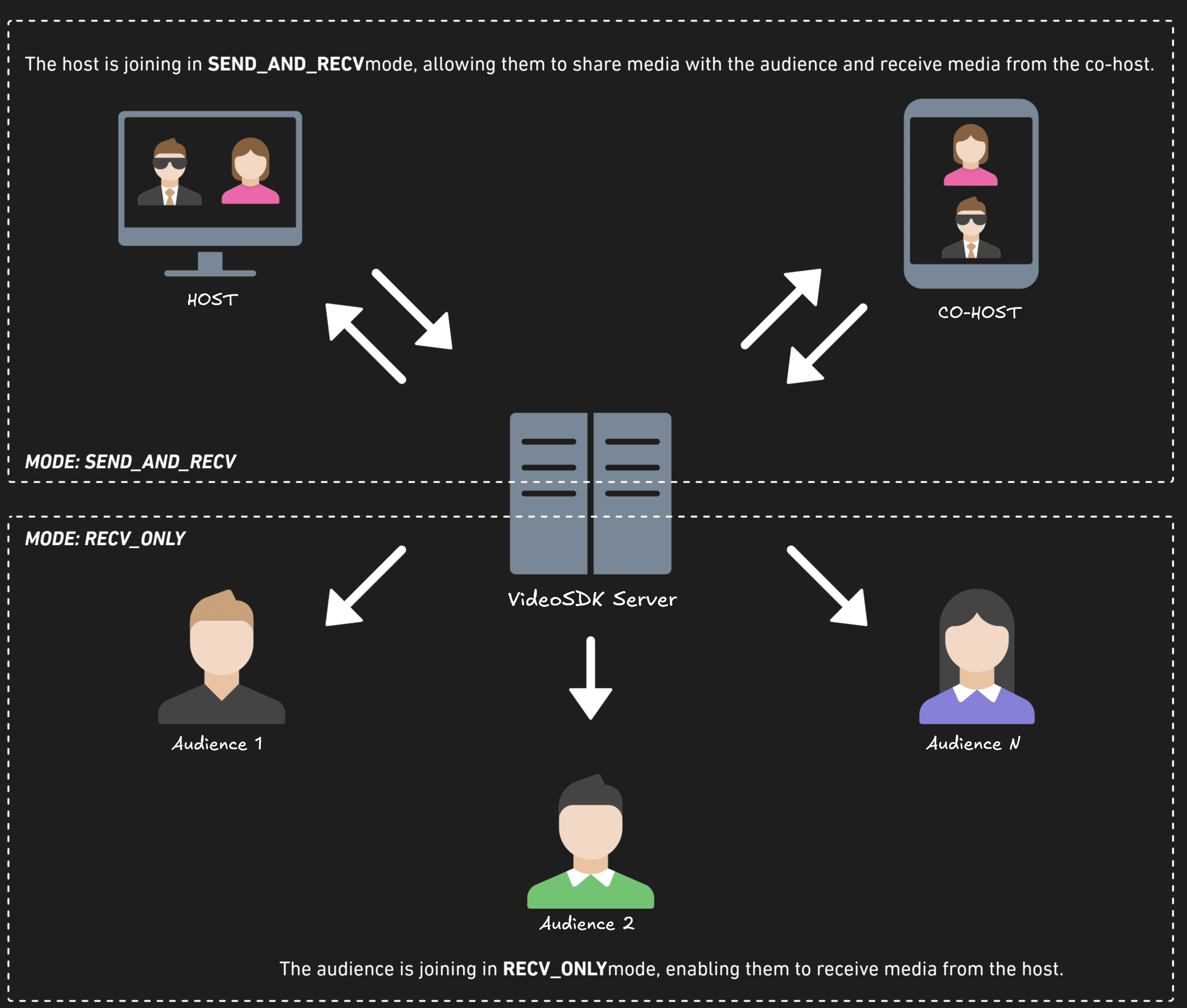
Before proceeding, let's understand the two modes of a Live Stream:
1. SEND_AND_RECV (For Host or Co-host):
- Designed primarily for the Host or Co-host.
- Allows sending and receiving media.
- Hosts can broadcast their audio/video and interact directly with the audience.
2. RECV_ONLY (For Audience):
- Tailored for the Audience.
- Enables receiving media shared by the Host.
- Audience members can view and listen but cannot share their own media.
Step 5: Initialize and Join the Live Stream
In this step, inside LiveStreamViewController, we will set up initializeStream and its related functions. You need an Auth token. Generate it with videosdk-server-api-example or from the Video SDK Dashboard.
LiveStreamViewController will implement various event listeners such as RoomEventListener, ParticipantEventListener.
VideoSDK.createRoom(roomId:token:...) creates the Room and takes the token as a parameter. It throws ERROR_INVALID_PARAMETER for an empty stream ID or token, so call it with try. join() is async throws, so call it with try await inside a Task.
This quick start pastes a temporary token from the VideoSDK Dashboard into the client and lets the user choose the mode. Use this setup only for development. In production, your client must obtain its token from your backend server, and your server must decide whether a participant joins as a host or as an audience member. A token cannot restrict the mode, so any client that holds a valid token can join in SEND_AND_RECV mode. See Authentication and Tokens.
- Swift
import Foundation
import VideoSDKRTC
import Combine

struct RoomStruct: Codable {
    let roomID: String?

    enum CodingKeys: String, CodingKey {
        case roomID = "roomId"
    }
}

class LiveStreamViewController: ObservableObject {

    var token = "YOUR_TOKEN"
    var streamId: String = ""
    var name: String = ""

    @Published var room: Room? = nil
    @Published var localParticipantView: VideoView? = nil
    @Published var videoTrack: RTCVideoTrack?
    @Published var participants: [Participant] = []
    @Published var streamID: String = ""

    func initializeStream(streamId: String, userName: String, mode: Mode) {
        do {
            room = try VideoSDK.createRoom(
                roomId: streamId,
                token: token,
                participantName: userName,
                micEnabled: true,
                camEnabled: true,
                mode: mode // Pass the mode here
            )
        } catch {
            print("Setup failed: \(error)")   // ERROR_INVALID_PARAMETER for an empty stream ID or token
            return
        }
        // Add event listeners
        room?.addEventListener(self)
        // Join the stream
        Task {
            do {
                try await room?.join()
            } catch {
                print("Join failed: \(error)")
            }
        }
    }
}

extension LiveStreamViewController: RoomEventListener {

    func onRoomJoined() {
        guard let localParticipant = self.room?.localParticipant else { return }
        // add to list
        participants.append(localParticipant)
        // add event listener
        localParticipant.addEventListener(self)
    }

    func onRoomLeft(reason: LeaveReason) {
        participants.removeAll()
        room?.localParticipant.removeEventListener(self)
        room?.removeEventListener(self)
    }

}
extension LiveStreamViewController: ParticipantEventListener {
    func onStreamEnabled(_ stream: RTCStream, forParticipant participant: Participant) {
        if participant.isLocal   {
            if let track = stream.track as? RTCVideoTrack {
                DispatchQueue.main.async {
                    self.videoTrack = track
                }
            }
        } else {
            if let track = stream.track as? RTCVideoTrack {
                DispatchQueue.main.async {
                    self.videoTrack = track
                }
            }
        }
    }

    func onStreamDisabled(_ stream: RTCStream, forParticipant participant: Participant) {

        if participant.isLocal {
            if let _ = stream.track as? RTCVideoTrack {
                DispatchQueue.main.async {
                    self.videoTrack = nil
                }
            }
        } else {
            self.videoTrack = nil
        }
    }
}
extension LiveStreamViewController {
    // create a new stream id
    func joinRoom(userName: String, mode: Mode) {

        let urlString = "https://api.videosdk.live/v2/rooms"
        let session = URLSession.shared
        let url = URL(string: urlString)!
        var request = URLRequest(url: url)
        request.httpMethod = "POST"
        request.addValue(self.token, forHTTPHeaderField: "Authorization")

        session.dataTask(with: request, completionHandler: { (data: Data?, response: URLResponse?, error: Error?) in

            if let data = data, let utf8Text = String(data: data, encoding: .utf8)
            {
                print("UTF =>=>\(utf8Text)") // original server data as UTF8 string
                do{
                    let dataArray = try JSONDecoder().decode(RoomStruct.self,from: data)
                    DispatchQueue.main.async {
                        // roomID is nil when the API rejects the token
                        guard let roomID = dataArray.roomID else {
                            print("Could not create a stream: \(utf8Text)")
                            return
                        }
                        self.streamID = roomID
                        self.joinStream(streamId: roomID, userName: userName, mode: mode)
                    }
                    print(dataArray)
                } catch {
                    print(error)
                }
            }
        }
        ).resume()
    }

    // initialise a stream with the given stream ID (either new or existing)
    func joinStream(streamId: String, userName: String, mode: Mode) {

        if !token.isEmpty {
            // use provided token for the stream
            self.streamID = streamId
            self.initializeStream(streamId: streamId, userName: userName, mode: mode)
        }
        else {
            print("Auth token required")
        }
    }
}
Step 6: Create LiveStream View
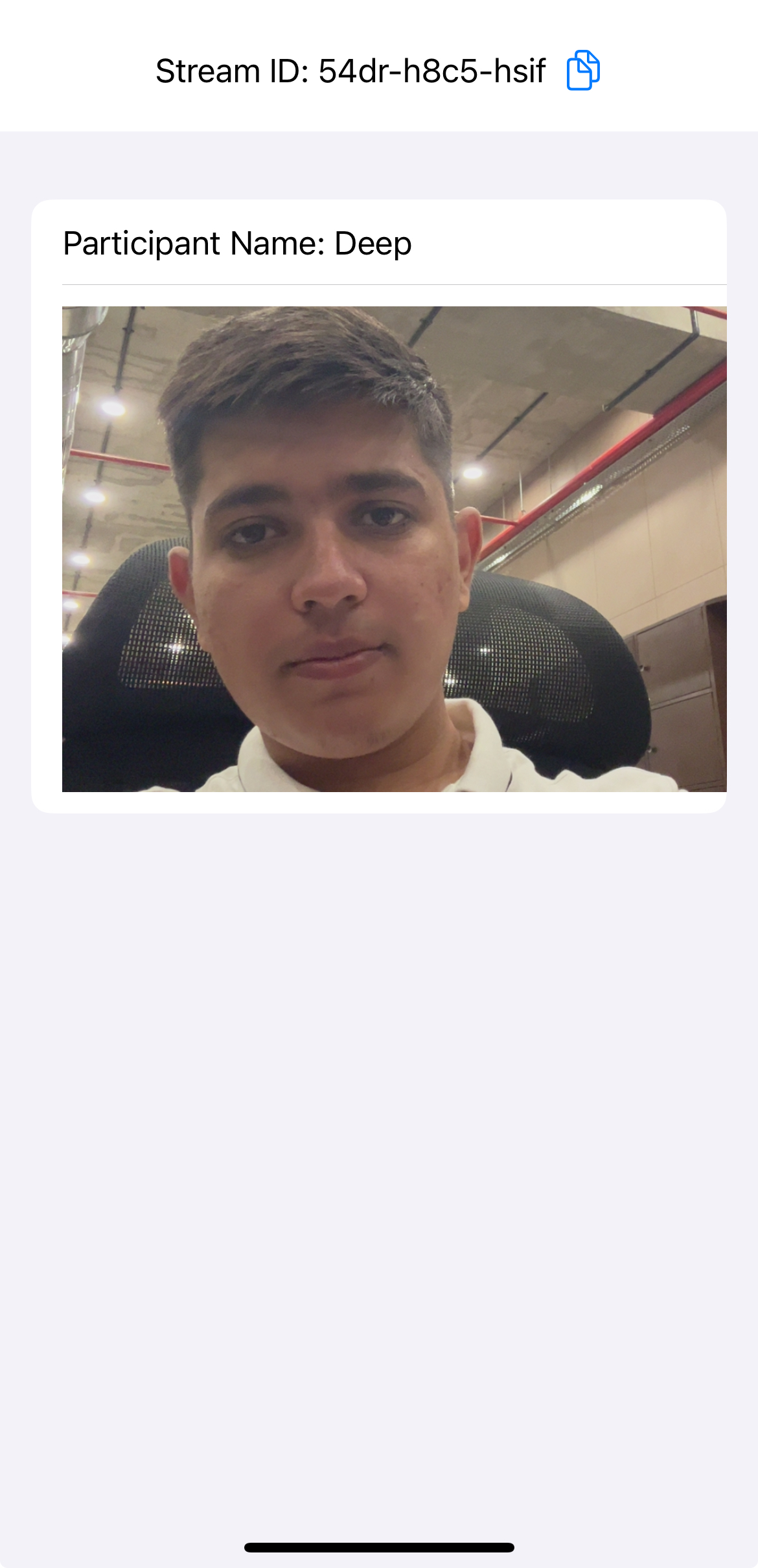
The LiveStreamView file manages the live streaming interface and adapts to the user's role.
- Swift
import SwiftUI
import VideoSDKRTC

struct LiveStreamView: View {
    @Environment(\.presentationMode) var presentationMode
    @StateObject var liveStreamViewController = LiveStreamViewController()

    @State var streamId: String?
    @State var userName: String?
    @State var isUnMute: Bool = true
    @State var camEnabled: Bool = true
    @State private var currentMode: Mode

    init(streamId: String? = nil, userName: String? = nil, mode: Mode) {
        self._streamId = State(initialValue: streamId)
        self._userName = State(initialValue: userName)
        self._currentMode = State(initialValue: mode)
    }

     private var isAudienceMode: Bool {
        // Derive audience mode from the current participant's mode
        if let localParticipant = liveStreamViewController.participants.first(where: { $0.isLocal }) {
            return localParticipant.mode == .RECV_ONLY
        }
        return currentMode == .RECV_ONLY
    }

    var body: some View {
        VStack {
            if liveStreamViewController.participants.isEmpty {
                Text("Stream Initializing")
            } else {
                VStack {
                    // Stream ID Tile
                    HStack {
                        Text("Stream ID: \(liveStreamViewController.streamID)")
                            .padding(.vertical)

                        Button(action: {
                            UIPasteboard.general.string = liveStreamViewController.streamID
                        }) {
                            Image(systemName: "doc.on.doc")
                                .foregroundColor(.blue)
                        }
                    }

                    // Participant List
                    List {
                        ForEach(liveStreamViewController.participants.indices, id: \.self) { index in
                            let participant = liveStreamViewController.participants[index]
                            if participant.mode != .RECV_ONLY {
                                Text("Participant Name: \(participant.displayName)")
                                ZStack {
                                    ParticipantView(track: participant.streams.first(where: { $1.kind == .video })?.value.track as? RTCVideoTrack)
                                        .frame(height: 250)
                                    if participant.streams.first(where: { $1.kind == .video }) == nil {
                                        Color.white.opacity(1.0)
                                            .frame(width: UIScreen.main.bounds.width, height: 250)
                                        Text("No media")
                                    }
                                }
                            }
                        }
                    }
                }
            }
        }
        .onAppear {
            if let streamId = streamId, !streamId.isEmpty {
                liveStreamViewController.joinStream(streamId: streamId, userName: userName ?? "Guest", mode: currentMode)
            } else {
                liveStreamViewController.joinRoom(userName: userName ?? "Guest", mode: currentMode)
            }
        }
    }
}

/// VideoView for participant's video
class VideoView: UIView {

    var videoView: RTCMTLVideoView = {
        let view = RTCMTLVideoView()
        view.videoContentMode = .scaleAspectFill
        view.backgroundColor = UIColor.black
        view.clipsToBounds = true
        view.frame = CGRect(x: 0, y: 0, width: UIScreen.main.bounds.width, height: 250)

        return view
    }()

    init(track: RTCVideoTrack?) {
        super.init(frame: CGRect(x: 0, y: 0, width: UIScreen.main.bounds.width, height: 250))
        backgroundColor = .clear
        DispatchQueue.main.async {
            self.addSubview(self.videoView)
            self.bringSubviewToFront(self.videoView)
            track?.add(self.videoView)
        }
    }

    required init?(coder: NSCoder) {
        fatalError("init(coder:) has not been implemented")
    }
}

/// ParticipantView for showing and hiding VideoView
struct ParticipantView: UIViewRepresentable {
    var track: RTCVideoTrack?

    func makeUIView(context: Context) -> VideoView {
        let view = VideoView(track: track)
        view.frame = CGRect(x: 0, y: 0, width: 250, height: 250)
        return view
    }

    func updateUIView(_ uiView: VideoView, context: Context) {
        if track != nil {
            track?.add(uiView.videoView)
        } else {
            track?.remove(uiView.videoView)
        }
    }
}
Output
Step 7: Implementing Media Toggles and Mode Switch
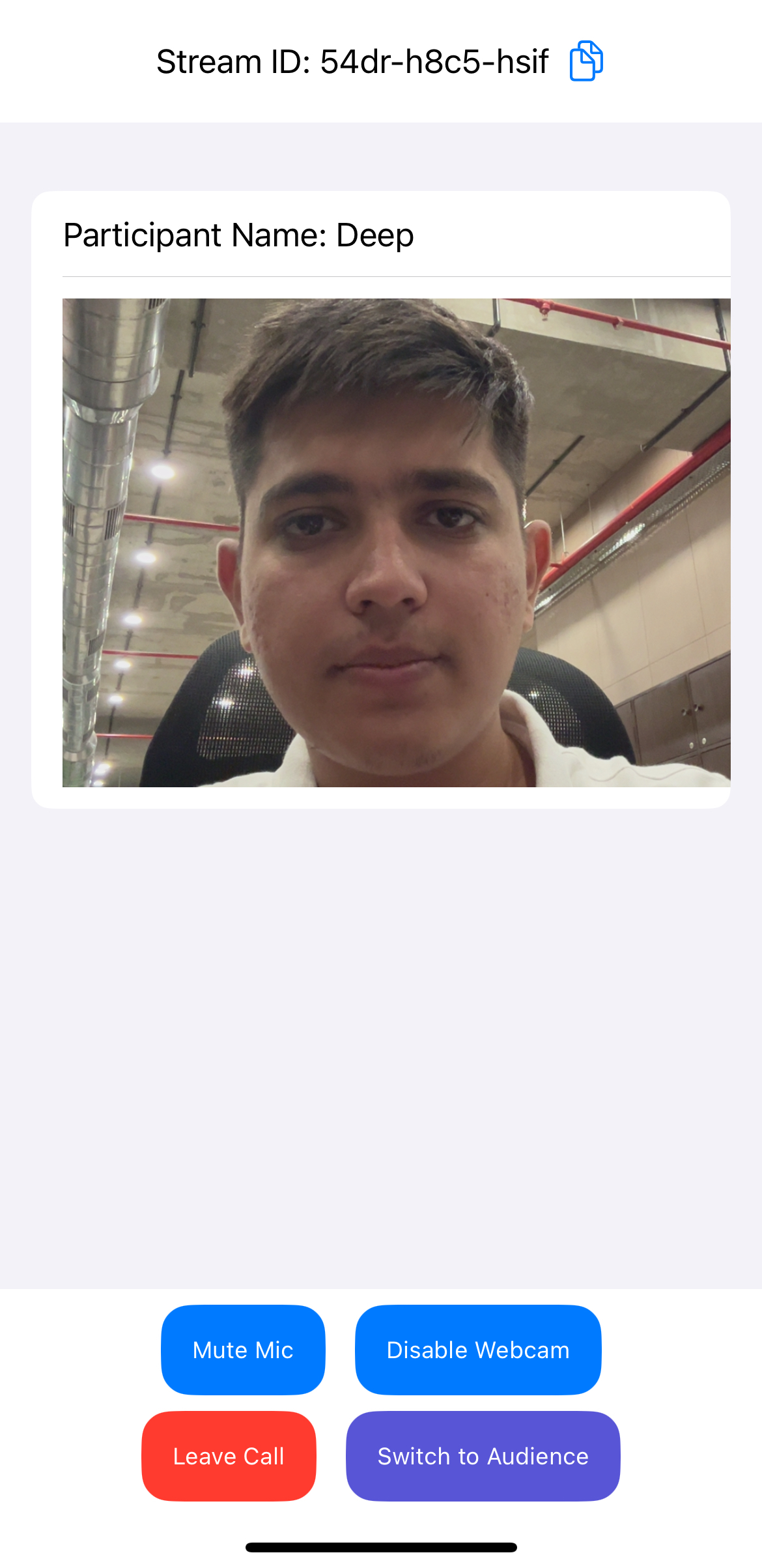
Media Control Buttons: Include buttons to toggle the microphone and camera, allowing users to mute/unmute their microphone and enable/disable their camera or leave the session entirely.
Mode Switching: Users can switch between "Host" and "Audience" modes.
These methods are async throws, so each button calls them with try await inside a Task. muteMic(), unmuteMic(), enableCam() and disableCam() throw ERROR_ALREADY_IN_REQUESTED_STATE when the device is already in that state, for example after it failed to open, so the buttons update their labels in that case too. When an audience member switches to host, the app calls unmuteMic() and enableCam() so the mic and camera are on and its buttons match. They throw ERROR_ALREADY_IN_REQUESTED_STATE for a device that is already on, and the app treats that as on.
- Swift
struct LiveStreamView: View {

    var body: some View {
        VStack {
            if liveStreamViewController.participants.isEmpty {
                Text("Stream Initializing")
            } else {
                VStack {
                    // ... other code for displaying participants
                    // Media Control Buttons
                    if !isAudienceMode {
                        HStack(spacing: 15) {
                            // Button to toggle microphone mute/unmute
                            Button {
                                Task {
                                    let wantOn = !isUnMute
                                    do {
                                        if wantOn {
                                            try await liveStreamViewController.room?.unmuteMic()
                                        } else {
                                            try await liveStreamViewController.room?.muteMic()
                                        }
                                        isUnMute = wantOn
                                    } catch let error as VideoSDKError where error == .ERROR_ALREADY_IN_REQUESTED_STATE {
                                        isUnMute = wantOn   // the mic is already in that state
                                    } catch let error as VideoSDKError where error == .ERROR_OPERATION_IN_PROGRESS {
                                        // an earlier tap is still running
                                    } catch {
                                        print("Mic toggle failed: \(error)")
                                    }
                                }
                            } label: {
                                ModeButton(
                                    text: isUnMute ? "Mute Mic" : "Unmute Mic",
                                    color: .blue
                                )
                            }

                            // Button to enable/disable camera
                            Button {
                                Task {
                                    let wantOn = !camEnabled
                                    do {
                                        if wantOn {
                                            try await liveStreamViewController.room?.enableCam()
                                        } else {
                                            try await liveStreamViewController.room?.disableCam()
                                        }
                                        camEnabled = wantOn
                                    } catch let error as VideoSDKError where error == .ERROR_ALREADY_IN_REQUESTED_STATE {
                                        camEnabled = wantOn   // the camera is already in that state
                                    } catch let error as VideoSDKError where error == .ERROR_OPERATION_IN_PROGRESS {
                                        // an earlier tap is still running
                                    } catch {
                                        print("Camera toggle failed: \(error)")
                                    }
                                }
                            } label: {
                                ModeButton(
                                    text: camEnabled ? "Disable Camera" : "Enable Camera",
                                    color: .blue
                                )
                            }
                        }
                    }

                    // Mode Control Buttons for switching modes
                    HStack(spacing: 15) {
                        // Button to leave the call
                        Button {
                            Task {
                                do {
                                    try await liveStreamViewController.room?.leave()
                                } catch {
                                    print("Leave failed: \(error)")
                                }
                                presentationMode.wrappedValue.dismiss()
                            }
                        } label: {
                            ModeButton(text: "Leave Call", color: .red)
                        }

                        // Button to switch between audience and host modes
                        Button {
                            let newMode: Mode = isAudienceMode ? .SEND_AND_RECV : .RECV_ONLY
                            Task {
                                do {
                                    try await liveStreamViewController.room?.changeMode(newMode)
                                    currentMode = newMode
                                } catch let error as VideoSDKError where error == .ERROR_ALREADY_IN_REQUESTED_STATE {
                                    currentMode = newMode   // already in that mode
                                } catch {
                                    print("Could not change mode: \(error)")
                                    return
                                }
                                if newMode == .SEND_AND_RECV {
                                    await turnOnMicAndCam()
                                }
                            }
                        } label: {
                            ModeButton(
                                text: isAudienceMode ? "Switch to Host" : "Switch to Audience",
                                color: .indigo
                            )
                        }
                    }
                }
            }
        }
        .onAppear {
            // code to handle view appearing
        }
    }
    // after the switch to host, turn the mic and camera on and update the buttons
    private func turnOnMicAndCam() async {
        guard let room = liveStreamViewController.room else { return }
        do {
            try await room.unmuteMic()
            isUnMute = true
        } catch let error as VideoSDKError where error == .ERROR_ALREADY_IN_REQUESTED_STATE {
            isUnMute = true
        } catch {
            isUnMute = false
            print("Could not turn on the mic: \(error)")
        }
        do {
            try await room.enableCam()
            camEnabled = true
        } catch let error as VideoSDKError where error == .ERROR_ALREADY_IN_REQUESTED_STATE {
            camEnabled = true
        } catch {
            camEnabled = false
            print("Could not turn on the camera: \(error)")
        }
    }
}

// Helper View for consistent button styling
struct ModeButton: View {
    let text: String
    let color: Color

    var body: some View {
        Text(text)
            .foregroundStyle(Color.white)
            .font(.caption)
            .padding()
            .background(
                RoundedRectangle(cornerRadius: 25)
                    .fill(color)
            )
    }
}
Output
Step 8: Extending Room Event Listeners
In this step, we add more events to the RoomEventListener implementation in LiveStreamViewController:
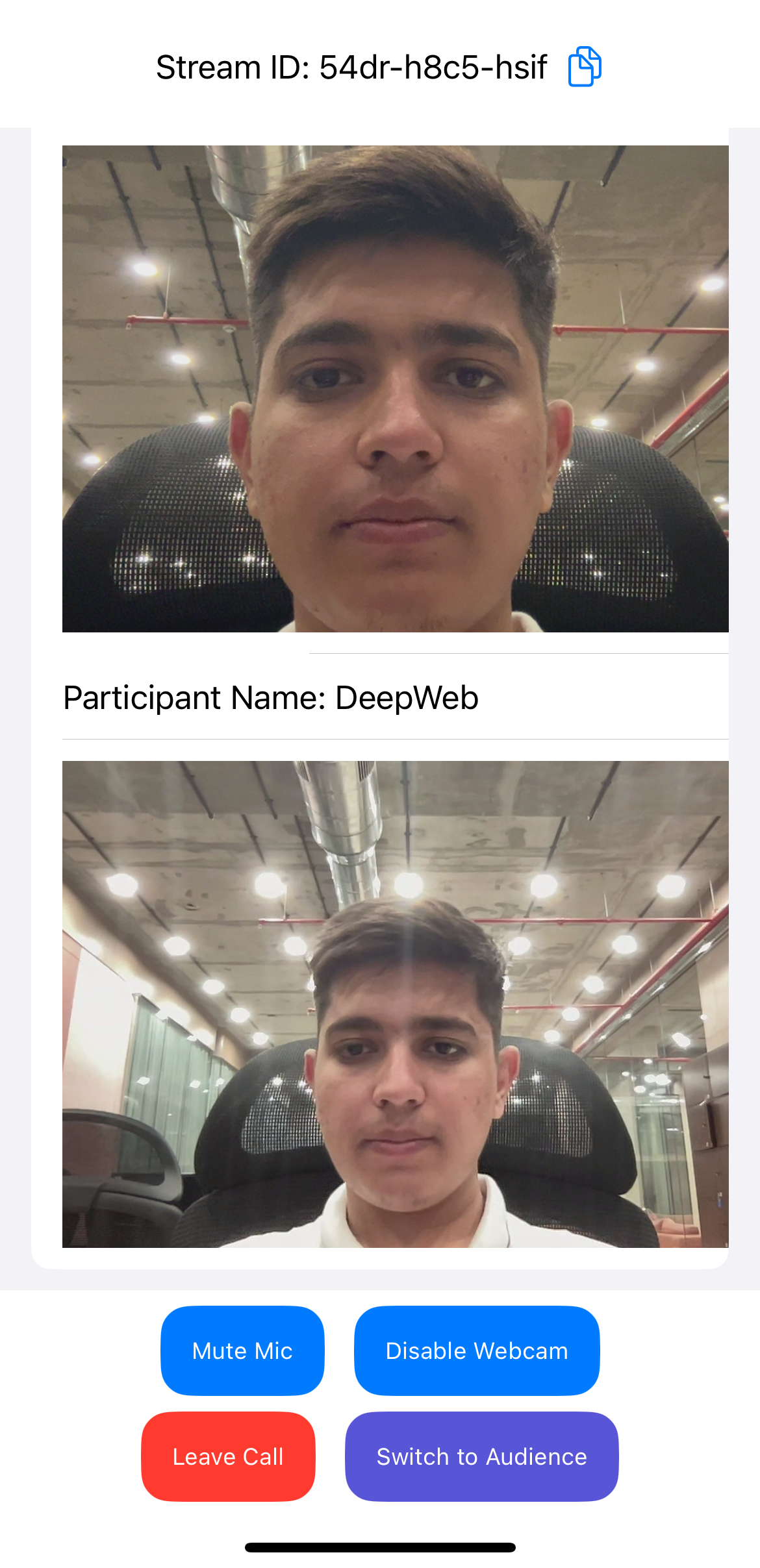
onParticipantJoined and onParticipantLeft to handle participant updates, onRoomStateChanged to handle room state changes, and onParticipantModeChanged to track participant modes.
- Swift
class LiveStreamViewController: ObservableObject {
    //...
    private var needsRefresh = false
    //...
}

extension LiveStreamViewController: RoomEventListener {
    //...
    func onParticipantJoined(_ participant: Participant) {

        participants.append(participant)

        // add listener
        participant.addEventListener(self)
    }

    func onParticipantLeft(_ participant: Participant, reason: LeaveReason) {
        participants = participants.filter({ $0.id != participant.id })
    }

    func onRoomStateChanged(roomState: RoomState) {
        switch roomState {

        case .DISCONNECTED:
            participants.removeAll()

        default:
            print("")
        }
    }
    func onParticipantModeChanged(participantId: String, mode: Mode) {
        DispatchQueue.main.async { [weak self] in
            if let currentParticipants = self?.participants {
                // The SDK has already updated participant.mode; reassign the array to refresh the UI
                if currentParticipants.contains(where: { $0.id == participantId }) {
                    self?.participants = currentParticipants
                }
            }
        }
    }
}
Output
Final Output
You have now added Interactive Live Streaming to your iOS app with Video SDK. To explore more, see the Basic and Advanced features.
Stuck anywhere? Check out this example code on GitHub. The example uses iOS SDK 3.x; the Migration Guide lists what changed in 4.0.0.
Got a Question?  Ask us on discord

