Screen Share - iOS
Follow the below listed steps to add the screensharing capability in your iOS App.
Create Broadcast Upload Extension in iOS
Step 1 : Open Target
Open your project in Xcode, then select File > New > Target in the menu bar.
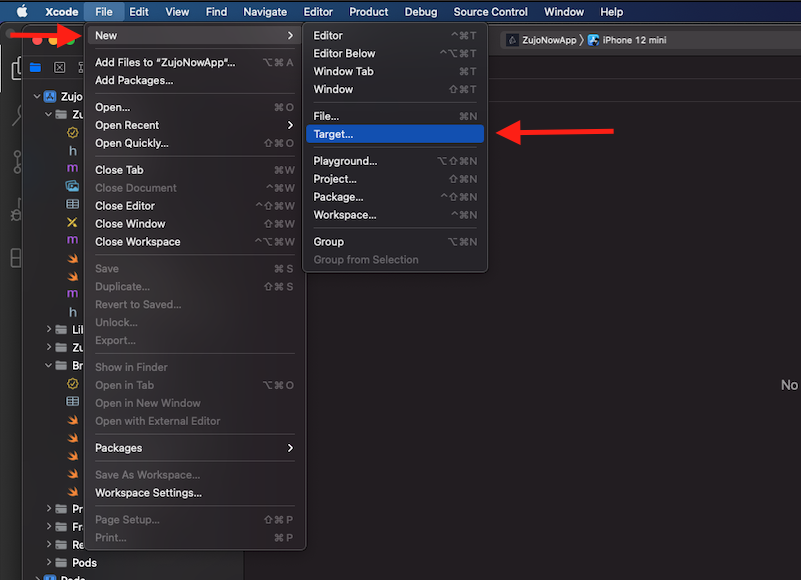
Step 2 : Select Target
Select Broadcast Upload Extension and click next.
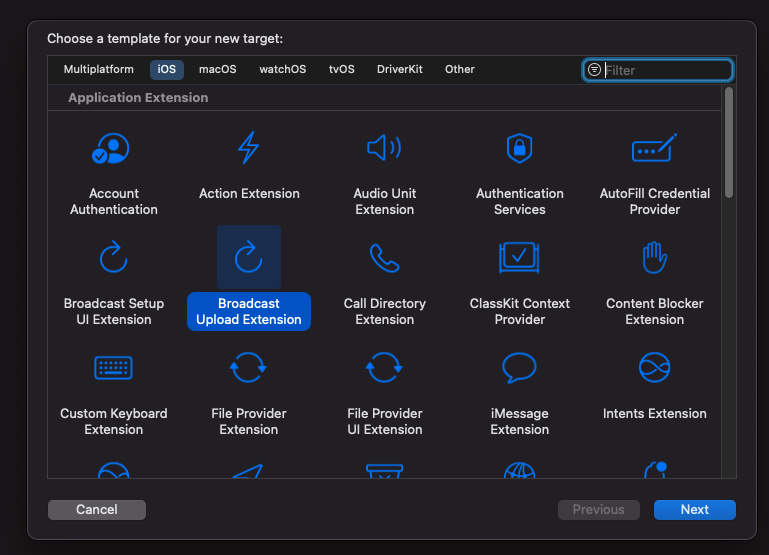
Step 3 : Configure Broadcast Upload Extension
Enter the extension's name in the Product Name field, choose the team from the dropdown, uncheck the "Include UI extension" field, and click "Finish."
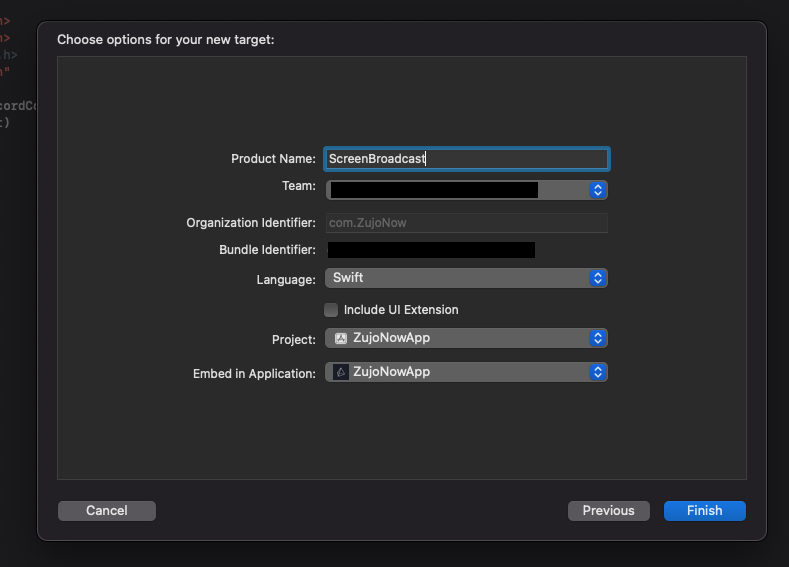
Step 4 : Activate Extension scheme
You will be prompted with a popup : Activate "Your-Extension-name" scheme?, click on activate.
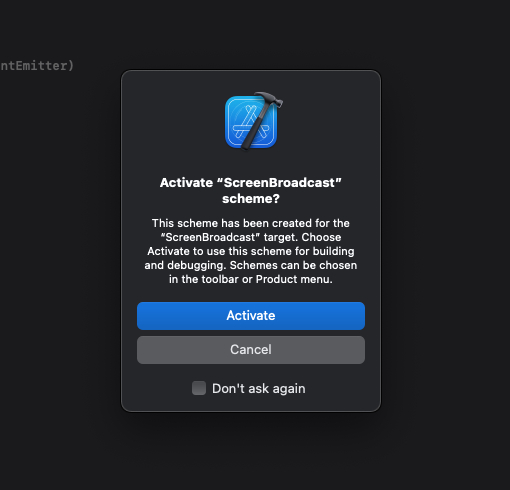
Now, the "Broadcast" folder will appear in the Xcode left side bar.
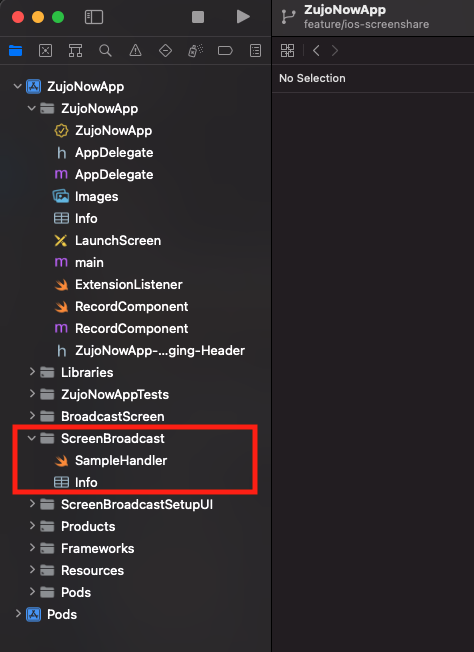
Step 5 : Add External file in Created Extension
Open the videosdk-rtc-ios-sdk-example repository, and copy the following files: SampleUploader.swift, SocketConnection.swift, DarwinNotification.swift, and Atomic.swift to your extension's folder. Ensure that these files are added to the target.
Step 6 : Update SampleHandler.swift file
Open SampleHandler.swift, and copy the content of the file. Paste this content into your extension's SampleHandler.swift file.
Step 7 : Add Capability in App
In Xcode, navigate to YourappName > Signing & Capabilities, and click on +Capability to configure the app group.
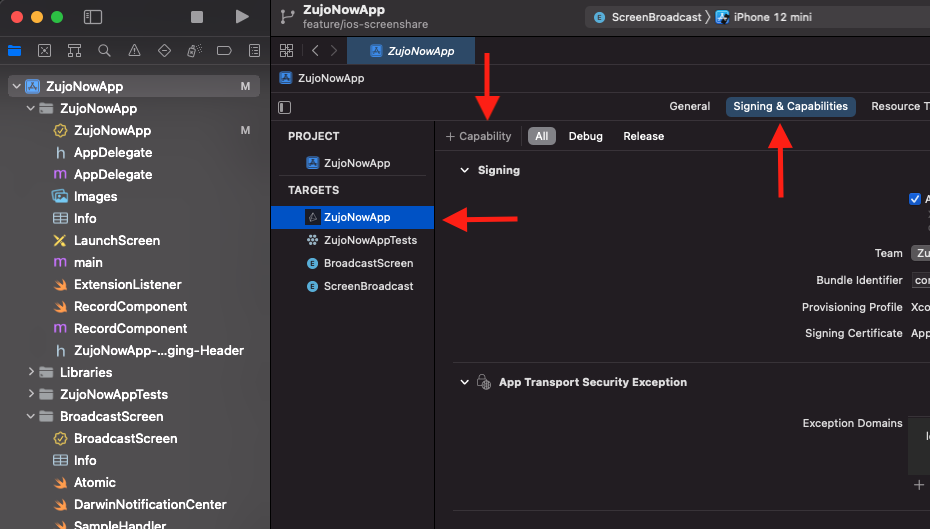
Choose App Groups from the list.
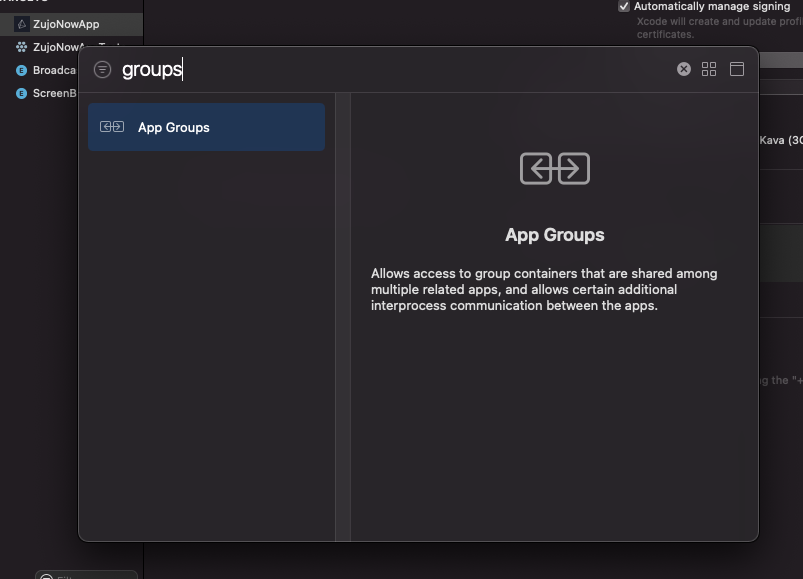
After that, select or add the generated App Group ID that you have created before.
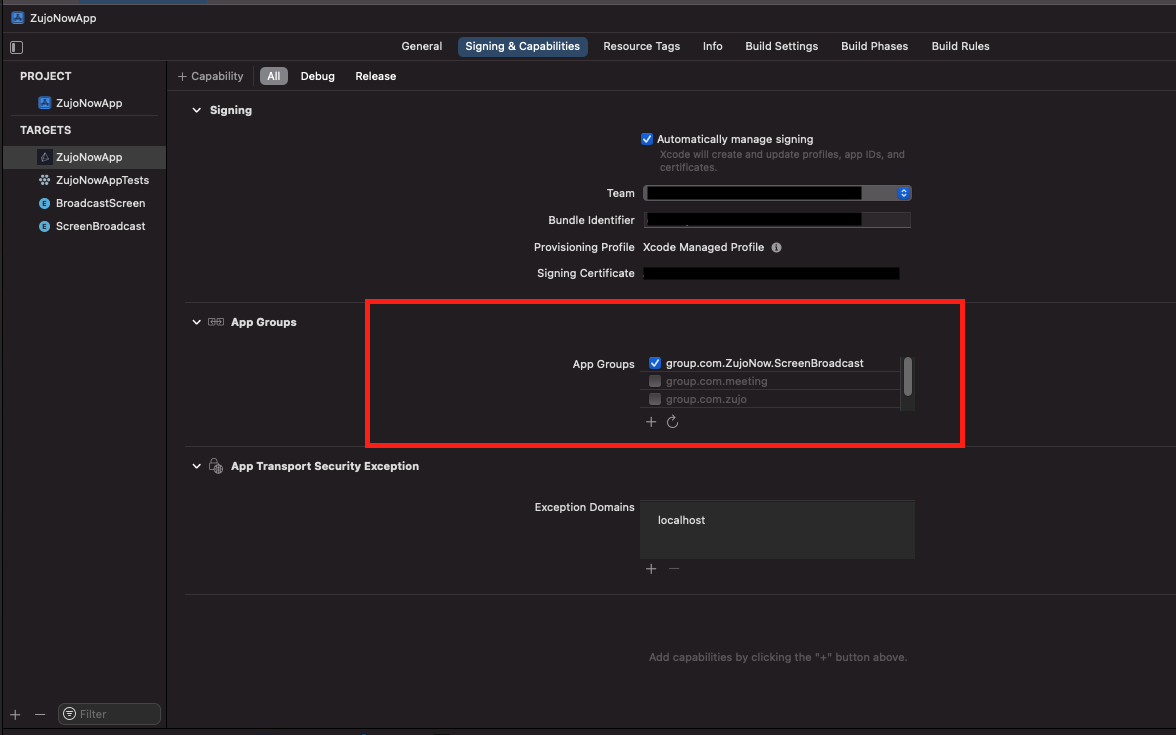
Step 8 : Add Capability in Extension
Go to Your-Extension-Name > Signing & Capabilities and configure App Group functionality as you did in the previous step. (Group id should be same for both targets).
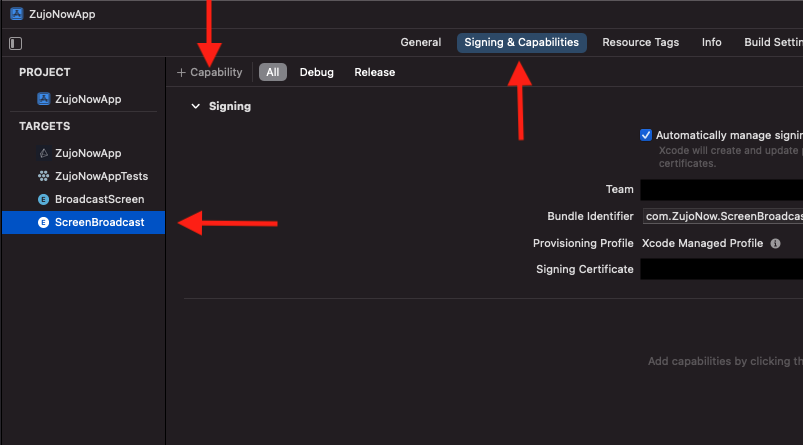
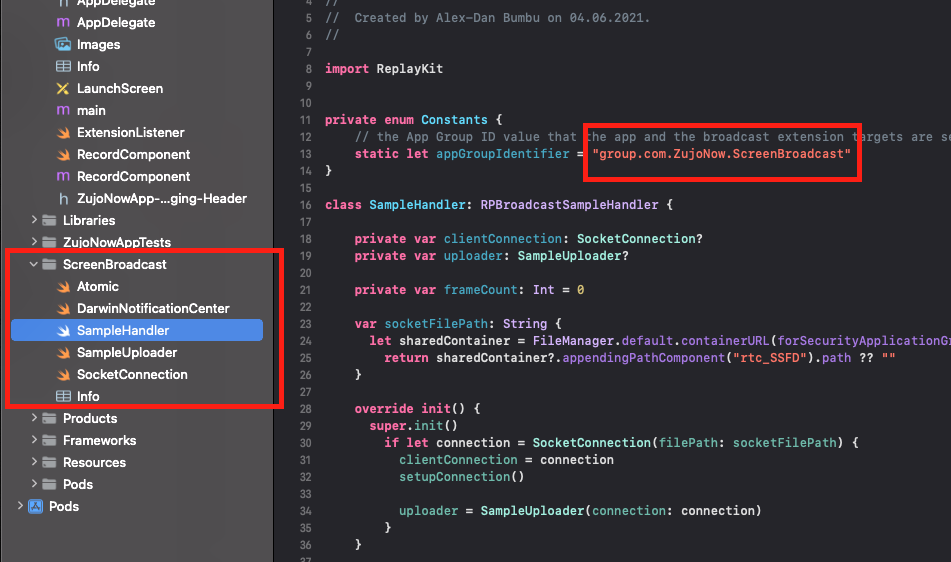
Step 9 : Add App Group Id in Extension File
Go to the extension's SampleHandler.swift file and paste your group ID in the appGroupIdentifier constant.
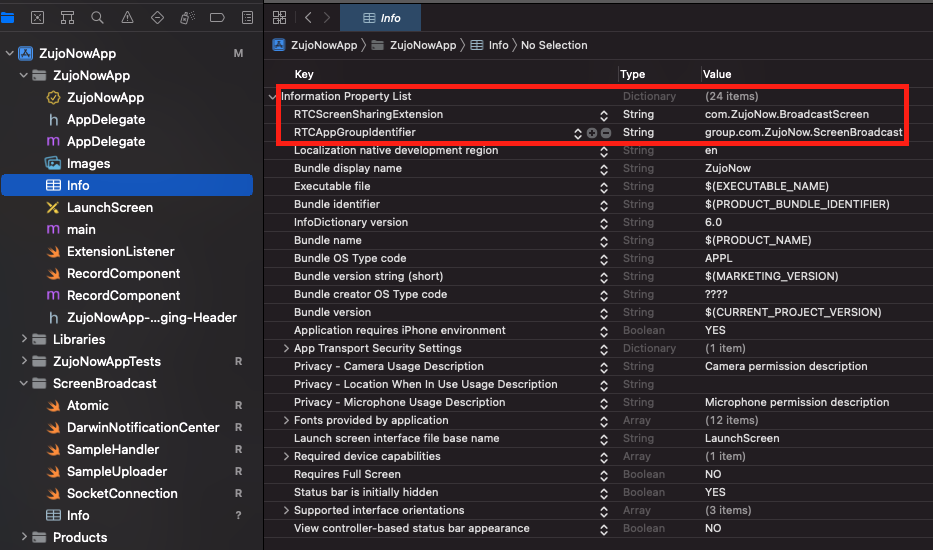
Step 10 : Update App level info.plist file
- Add a new key RTCScreenSharingExtension in Info.plist with the extension's Bundle Identifier as the value.
- Add a new key RTCAppGroupIdentifier in Info.plist with the extension's App groups Id as the value.
Note : For the extension's Bundle Identifier, go to TARGETS > Your-Extension-Name > Signing & Capabilities .
You can also check out the extension's example code on GitHub.
Integrate ScreenShare in your App
After successfully creating Broadcast Upload Extension using the above listed steps, we can start using the enableScreenShare and disableScreenShare functions of the Room class.
How to use the ScreenShare functions
- Swift
@IBAction func ScreenShareButtonTapped(_ sender: Any) {
    Task {
        do {
            try await self.room?.enableScreenShare()
        } catch {
            print("Could not start screen share: \(error)")
        }
    }
}

@IBAction func StopScreenShareButtonTapped(_ sender: Any) {
    Task {
        do {
            try await self.room?.disableScreenShare()
        } catch {
            print("Could not stop screen share: \(error)")
        }
    }
}
The functions enableScreenShare and disableScreenShare are async throws functions; therefore call them with try await inside a Task, as shown above. If the app is not set up for screen sharing, enableScreenShare throws ERROR_GET_DISPLAY_MEDIA. See Errors below.
Calling enableScreenShare() shows an RPSystemBroadcastPickerView with the extension that was created using the above steps.
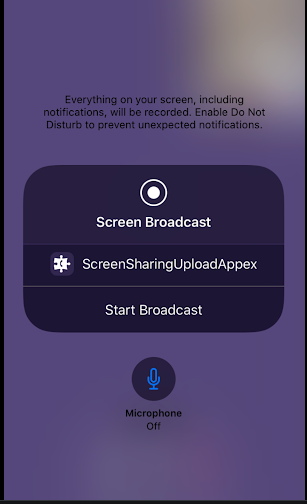
After clicking the Start Broadcast button, you will be able to get the screen share stream in the session.
-
If the user closes the picker without starting the broadcast, call
enableScreenShare()again to show the picker again. If no broadcast starts within about 30 seconds of the picker appearing, the SDK cancels the screen share. -
The user can also stop the broadcast from Control Center. The SDK then ends the screen share for you, so you do not need to call
disableScreenShare(). -
When the broadcast is started, it creates a Stream that has
RTCStream.kind == .share. Using the stream kind, you can prompt a ScreenShare view for remote peer when ScreenShare is started by the local peer. -
Similarly, you can use the same kind to dismiss the screenshare view on the remote peer when the screenshare was stopped.
Example
- Swift
extension RoomViewController: ParticipantEventListener {
    /// Participant has enabled mic, video or screenshare
    /// - Parameters:
    ///   - stream: enabled stream object
    ///   - participant: participant object
    func onStreamEnabled(_ stream: RTCStream, forParticipant participant: Participant) {

        if stream.kind == .share {
        // show screen share
            showScreenSharingView(true)
            screenSharingView.showMediastream(stream)
            return
        }

        // show stream in cell
        if let cell = self.cellForParticipant(participant) {
            cell.updateView(forStream: stream, enabled: true)
        }

        if participant.isLocal {
        // turn on controls for local participant
            self.buttonControlsView.updateButtons(forStream: stream, enabled: true)
        }
    }

    /// Participant has disabled mic, video or screenshare
    /// - Parameters:
    /// - stream: disabled stream object
    /// - participant: participant object
    func onStreamDisabled(_ stream: RTCStream, forParticipant participant: Participant) {

        if stream.kind == .share {
        // remove screen share
            showScreenSharingView(false)
            screenSharingView.hideMediastream(stream)
            return
        }

        // hide stream in cell
        if let cell = self.cellForParticipant(participant) {
            cell.updateView(forStream: stream, enabled: false)
        }

        if participant.isLocal {
        // turn off controls for local participant
            self.buttonControlsView.updateButtons(forStream: stream, enabled: false)
        }
    }
}
Check whether you are sharing
-
isScreenSharingof theRoomclass istruefrom the momentenableScreenShare()shows the picker until the screen share ends, whether you end it, the user stops it from Control Center, iOS ends the broadcast, or the SDK cancels it because no broadcast started. -
Use it to drive a single share button, instead of a flag of your own.
-
If the user closes the picker without starting the broadcast,
isScreenSharingstaystrueuntil the SDK cancels the share, about 30 seconds after the picker appeared. With the button below, a tap in that time callsdisableScreenShare(), and the next tap shows the picker again.
- Swift
@IBAction func screenShareButtonTapped(_ sender: Any) {
    Task {
        do {
            if self.room?.isScreenSharing == true {
                try await self.room?.disableScreenShare()
            } else {
                try await self.room?.enableScreenShare()
            }
        } catch {
            print("Screen share failed: \(error)")
        }
    }
}
Screen share quality
-
By default, the screen is shared at 720p and 15 frames per second (
.h720p_15fps). To choose another quality, pass aCustomScreenShareTrackConfigvalue toenableScreenShare(_:). It does not change the quality of the camera video. -
The available values are
.h360p_30fps,.h480p_15fps,.h480p_30fps,.h720p_5fps,.h720p_15fps,.h720p_30fps,.h1080p_15fpsand.h1080p_30fps.
- Swift
Task {
    do {
        // share the screen at 1080p and 15 frames per second
        try await self.room?.enableScreenShare(.h1080p_15fps)
    } catch {
        print("Could not start screen share: \(error)")
    }
}
- To create the settings once and use them for every screen share, create a track with
VideoSDK.createScreenShareVideoTrack(encoderConfig:multiStream:withAudio:)and pass it toenableScreenShare(_:). WithmultiStream: true, the screen share is sent in three quality layers. The default,false, sends one layer.withAudiois accepted and ignored: iOS shares no audio.
- Swift
let screenShareTrack = VideoSDK.createScreenShareVideoTrack(encoderConfig: .h720p_30fps, multiStream: true)

Task {
    do {
        try await self.room?.enableScreenShare(screenShareTrack)
    } catch {
        print("Could not start screen share: \(error)")
    }
}
Errors
enableScreenShare() and disableScreenShare() throw a VideoSDKError when the call is refused:
-
ERROR_GET_DISPLAY_MEDIA(3013) when the app is not set up for screen sharing: Info.plist has no RTCScreenSharingExtension or RTCAppGroupIdentifier key, the app is not in that App Group, or there is no window to show the picker in. Check Steps 7 to 10 above. -
ERROR_ALREADY_IN_REQUESTED_STATE(3054) when the screen share is already on (enableScreenShare()) or already off (disableScreenShare()). -
ERROR_OPERATION_IN_PROGRESS(3055) when the previous broadcast is still stopping. Try again in a moment. -
ERROR_ACTION_PERFORMED_BEFORE_ROOM_JOINED(3035) before you join the room, andERROR_ROOM_RECONNECTING(3065) while the room is reconnecting. -
ERROR_ACTION_NOT_SUPPORTED_IN_MODE(3066) fromenableScreenShare()when the room is inRECV_ONLYorSIGNALLING_ONLYmode.
API Reference
The API references for all the methods and events utilised in this guide are provided below.
Got a Question?  Ask us on discord

