Waiting Screen - iOS
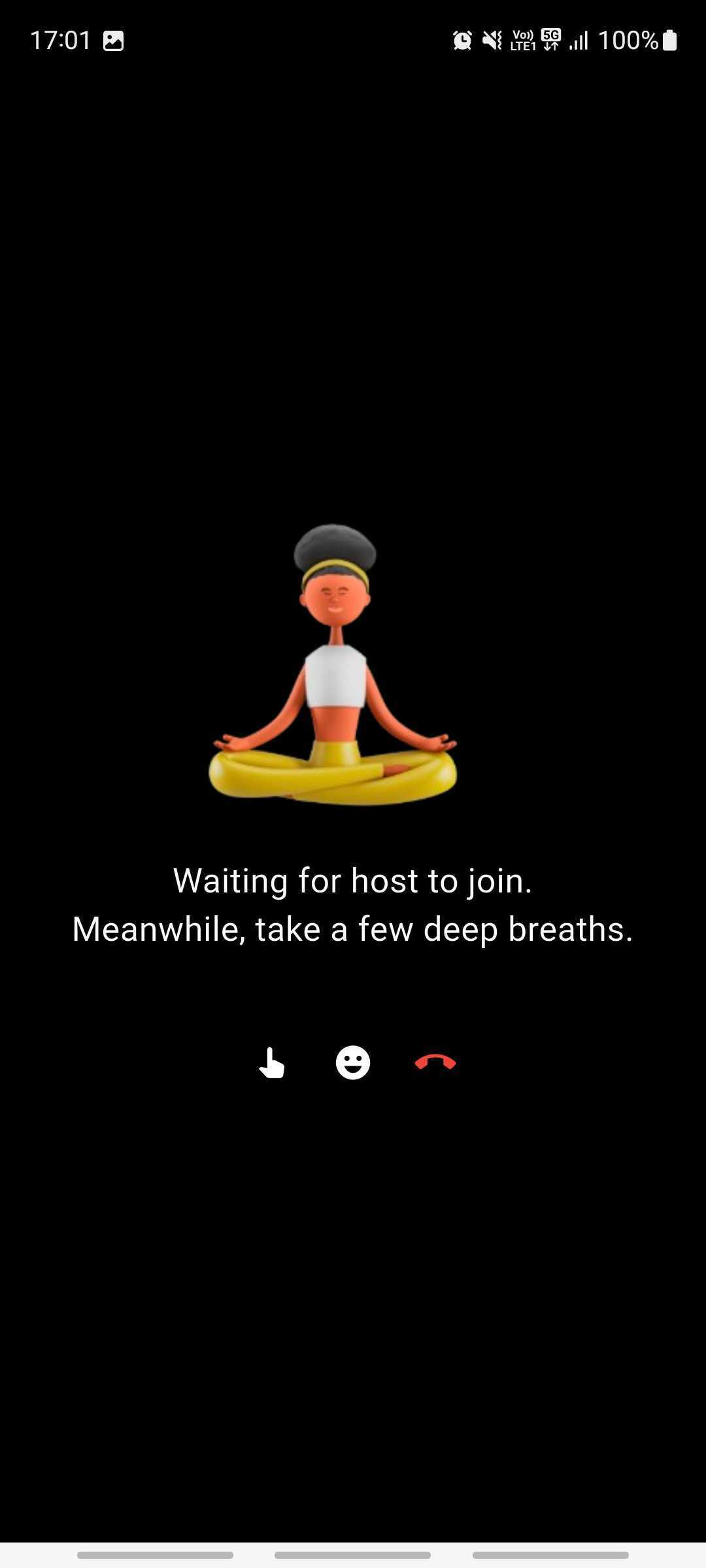
Don't render the room for audience members as soon as they join. Instead, show a waiting screen until at least one host is present in the room.
Why This Matters?
-
Hosts are typically responsible for driving the room, and their presence is essential before audience members should be able to view or interact in the room.
-
Allowing audience members (in RECV_ONLY mode) to enter a room with no active hosts (in SEND_AND_RECV mode) can result in confusion and a poor user experience.
Participant Modes
- Hosts must join the room with the SEND_AND_RECV mode.
- Audience members should join with the RECV_ONLY mode.
Implementation Guide
You can achieve this behavior by using the participants property of the Room class and the onParticipantJoined event of RoomEventListener.
- Check if a Host is Present
When the audience member joins, use the
participantsdictionary to determine if there's already a host in the room:
func hasHost(participants: [String: Participant]) -> Bool {
    return participants.values.contains { $0.mode == .SEND_AND_RECV }
}
Call it with room.participants in onRoomJoined(). If hasHost is true, render the room view. Otherwise, show the waiting screen.
- Listen for Host Join Always listen for the onParticipantJoined event in case a host joins after the audience participant:
extension LiveStreamViewController: RoomEventListener {

    func onParticipantJoined(_ participant: Participant) {
        if participant.mode == .SEND_AND_RECV {
            // Update your UI or state to show the room view
            DispatchQueue.main.async {
                self.showRoomView()
            }
        }
    }
}
This moves waiting audience members into the room view as soon as a host joins.
Got a Question?  Ask us on discord

