Start HLS - iOS
Before starting HLS, you need a running VideoSDK room to use for the interactive livestream. To learn more about setting up interactive live streaming, you can follow the steps here in the quick start guide.
Starting HLS
Once the user has joined the room, startHLS() of the Room class starts an interactive livestream of the room. This method accepts two optional parameters:
-
config (optional): This parameter will define how the interactive livestream layout should look. Every field ofHLSConfigis optional; a field you leave out is left to the server. -
transcription(optional): This parameter will be used to enable post transcription for the recording with the given config.
startHLS()isasync throws. Call it withtry awaitinside aTask.- When the call is refused, it throws a
VideoSDKError:ERROR_ACTION_PERFORMED_BEFORE_ROOM_JOINED(3035) before you join the room, or after you leave it.ERROR_ROOM_RECONNECTING(3065) while the room is reconnecting. Call the method again after the room reconnects.
- If the request fails, for example because the server refuses it, the call throws and
onError(error:)also receivesSTART_HLS_FAILED(4016). Show the error only once.
- Swift
let config: HLSConfig = HLSConfig(

  // Layout Configuration
  layout: ConfigLayout(
    type: .GRID, // .SPOTLIGHT | .SIDEBAR,  Default : .GRID
    priority: .SPEAKER, // .PIN, Default : .SPEAKER
    gridSize: 4 // MAX : 25
  ),

  // Theme of livestream
  theme: .DARK, //  .LIGHT | .DEFAULT

  // `mode` is used to either interactive livestream video & audio both or only audio.
  mode: .VIDEO_AND_AUDIO, // .AUDIO, Default : .VIDEO_AND_AUDIO

  // Quality of livestream and is only applicable to `video-and-audio` type mode.
  quality: .HIGH,  // .LOW | .MED,  Default : .MED

  // This mode refers to orientation of recording.
  // landscape : Livestream the room in horizontally
  // portrait : Livestream the room in vertically (Best for mobile view)
  orientation: .portrait  // .landscape,  Default : .landscape
)

//  let transcription: PostTranscriptionConfig =  PostTranscriptionConfig(
//   enabled: true,
//   summary: SummaryConfig(
//           enabled: true,
//           prompt: "Write summary in sections like Title, Agenda, Speakers, Action Items, Outlines, Notes and Summary"
//       )
//   )

Task {
  do {
    try await room?.startHLS(config: config)
  } catch {
    print("Start HLS failed: \(error)")
  }
}
If you want only the SEND_AND_RECV participants to be seen in the livestream, you can pin all the participants in the SEND_AND_RECV mode and start the livestream with the SPOTLIGHT layout and pin as the PRIORITY.
Example
- Swift
func startHLS() {
  let config: HLSConfig = HLSConfig(
    layout: ConfigLayout(
      type: .GRID, // .SPOTLIGHT | .SIDEBAR,  Default : .GRID
      priority: .SPEAKER, // .PIN, Default : .SPEAKER
      gridSize: 4 // MAX : 25
    ),
    theme: .DARK, //  .LIGHT | .DEFAULT
    mode: .VIDEO_AND_AUDIO, // .AUDIO, Default : .VIDEO_AND_AUDIO
    quality: .HIGH,  // .LOW | .MED,  Default : .MED
    orientation: .portrait  // .landscape,  Default : .landscape
  )

  // let transcription: PostTranscriptionConfig =  PostTranscriptionConfig(
  //   enabled: true,
  //   summary: SummaryConfig(
  //           enabled: true,
  //           prompt: "Write summary in sections like Title, Agenda, Speakers, Action Items, Outlines, Notes and Summary"))

  Task {
    do {
      try await self.room?.startHLS(config: config)
    } catch let error as VideoSDKError {
      print("Start HLS failed: \(error.name) (\(error.code)): \(error.message)")
    } catch {
      print("Start HLS failed: \(error)")
    }
  }
}
Understanding Layouts
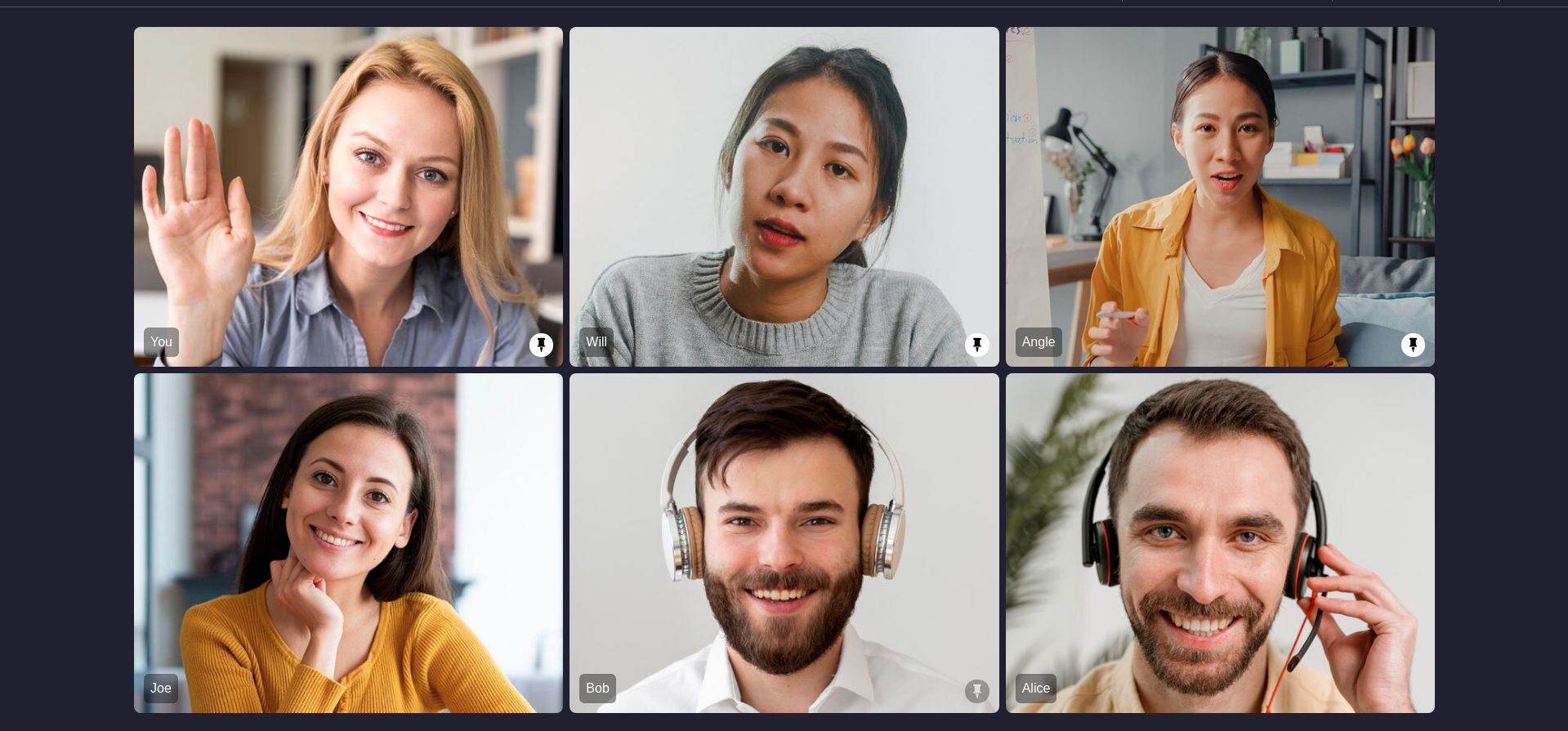
1. GRID Layout
This is the default layout. If no participant is pinned, it looks the same as a normal room grid layout. When a participant is pinned, that participant moves to the top of the main screen grid, above all unpinned participants.
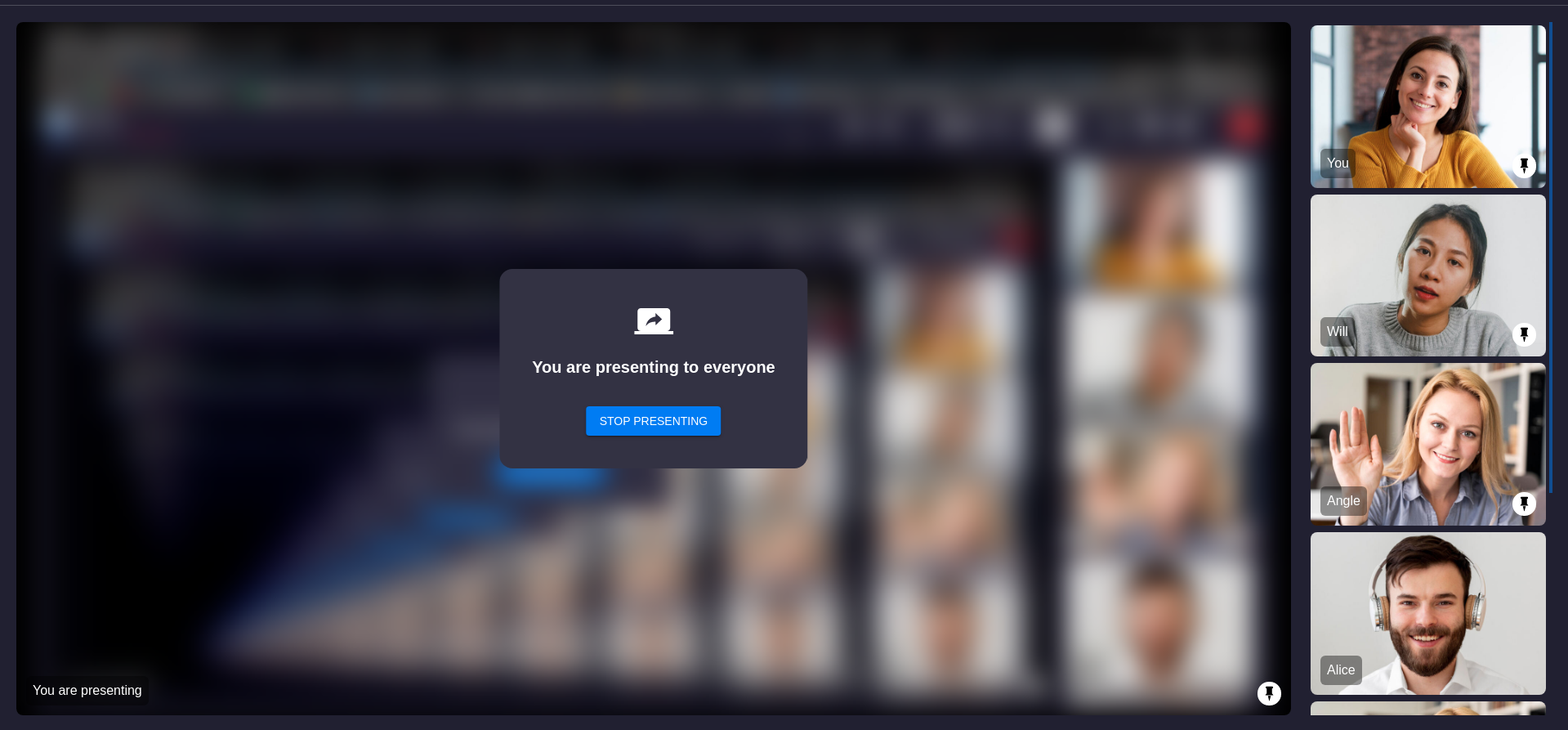
During a screen share, the main view contains only the screen share, and the side panel keeps the same order of pinned and unpinned participants.
| Grid | Grid with Screenshare |
|---|---|
 |  |
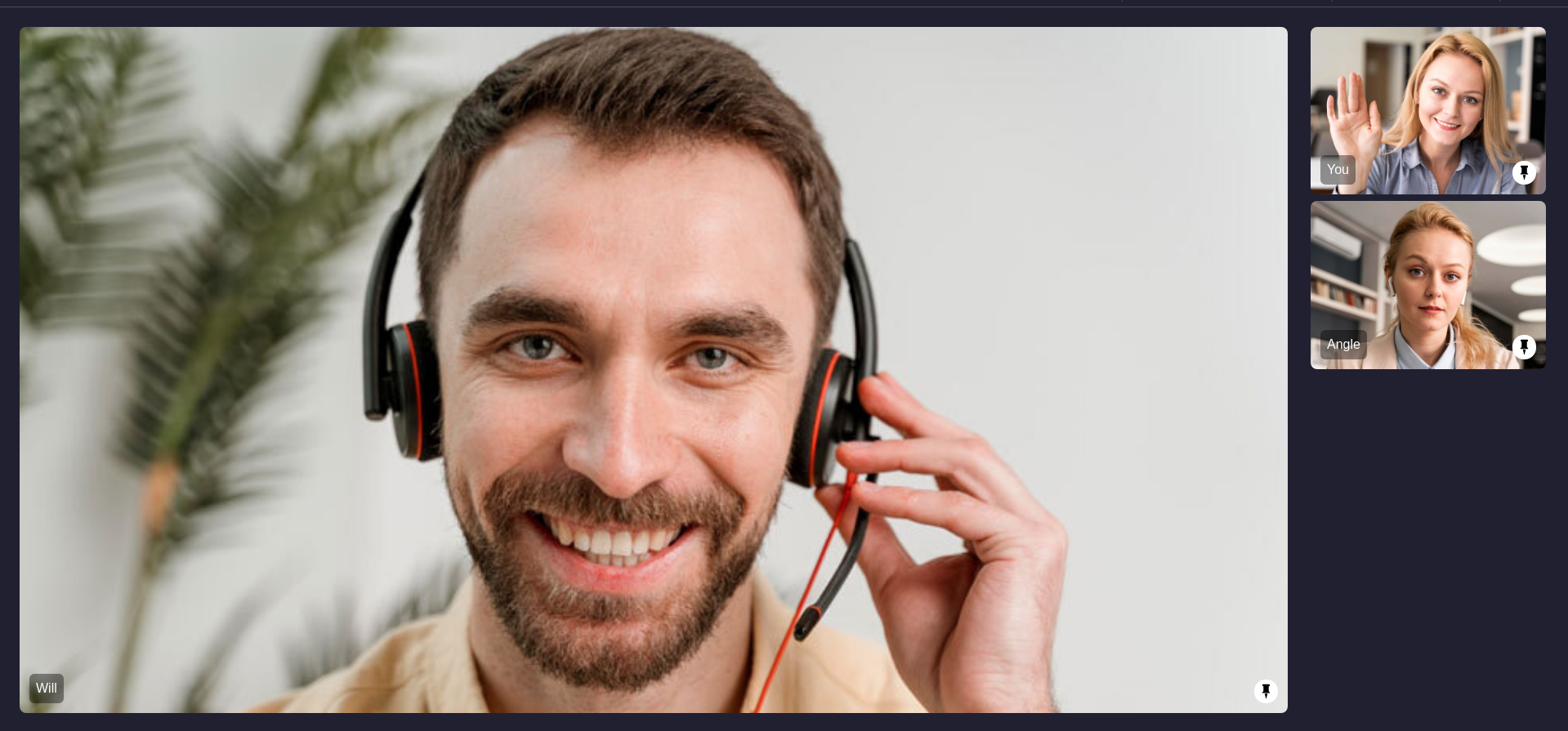
2. SIDEBAR Layout
This layout will have one main screen view and other sidebar grid layout. Only pinned participants are visible in this layout. If more than one participant is pinned then the first participant who was pinned will appear in main screen layout and all other remaining pinned participants will be visible in sidebar.
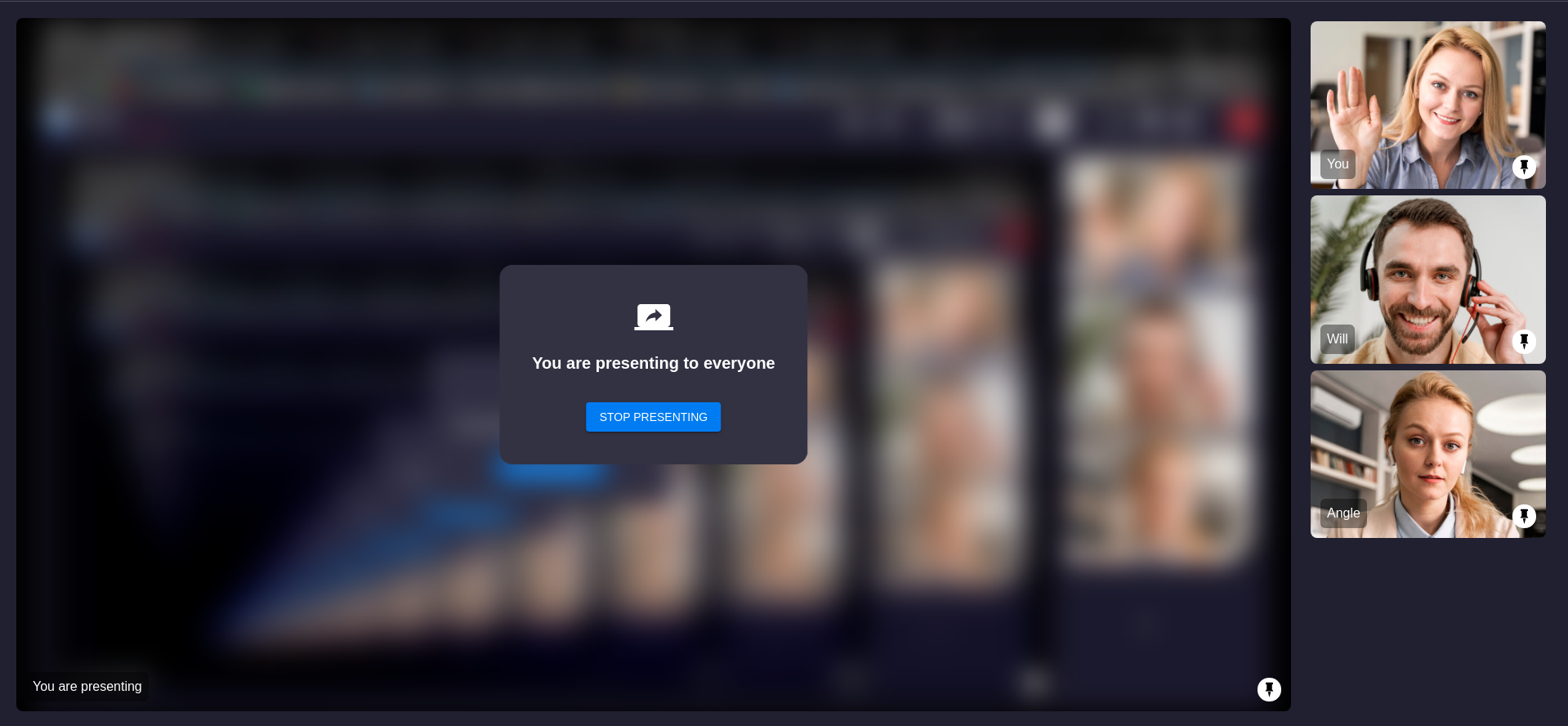
If any pinned participant started screenshare then the screenshare media will be visible in main screen layout and all other pinned participants webcam view will be visible in sidebar
| Sidebar | Sidebar with Screenshare |
|---|---|
 |  |
3. SPOTLIGHT Layout
This layout has only the main screen, and all pinned participants are visible in it. As in the SIDEBAR layout, only pinned participants are visible.
If any pinned participant started screenshare then only screenshare view will be visible in main screen, no webcam view will be visible when any pinned participant started screenshare.
| Spotlight | Spotlight with Screenshare |
|---|---|
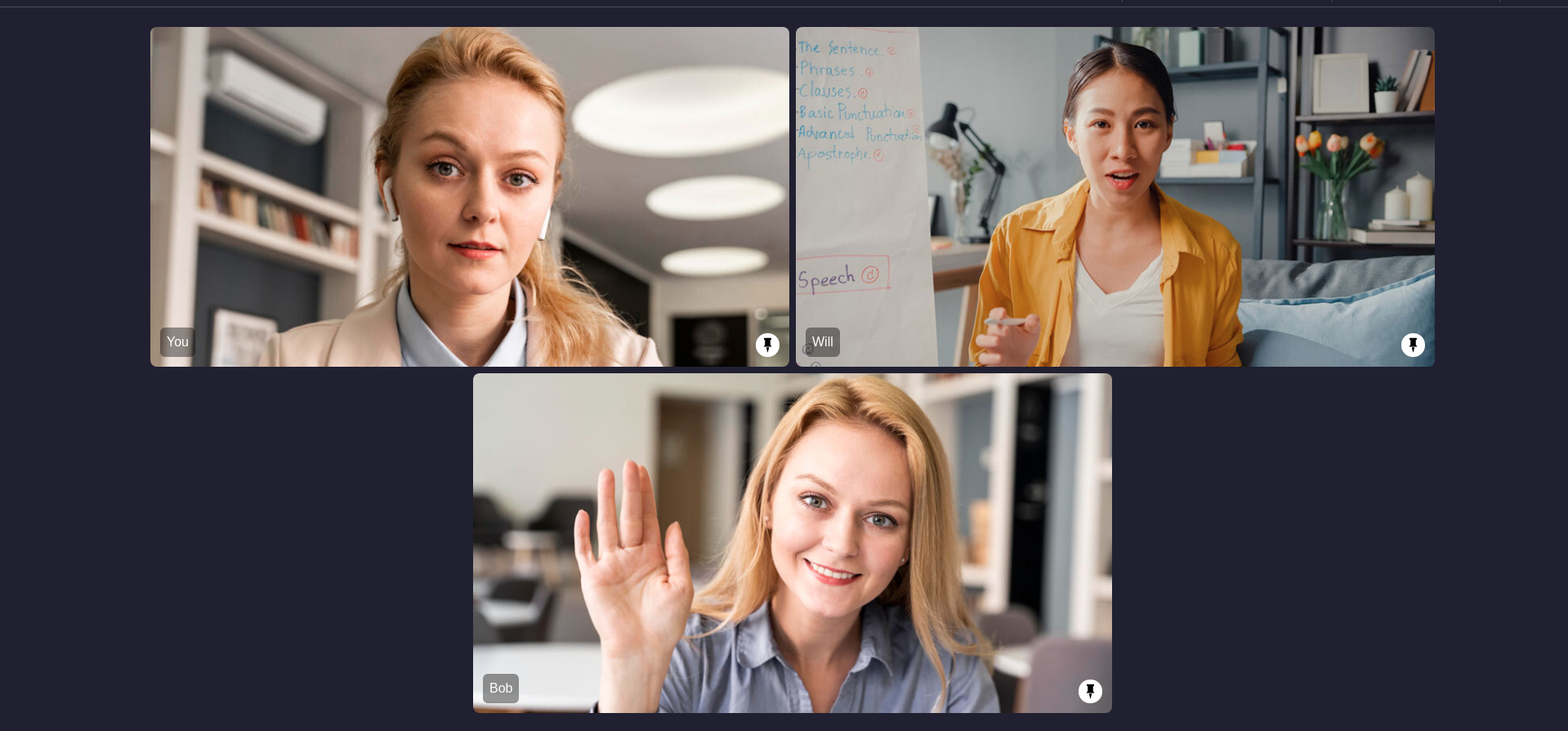 | 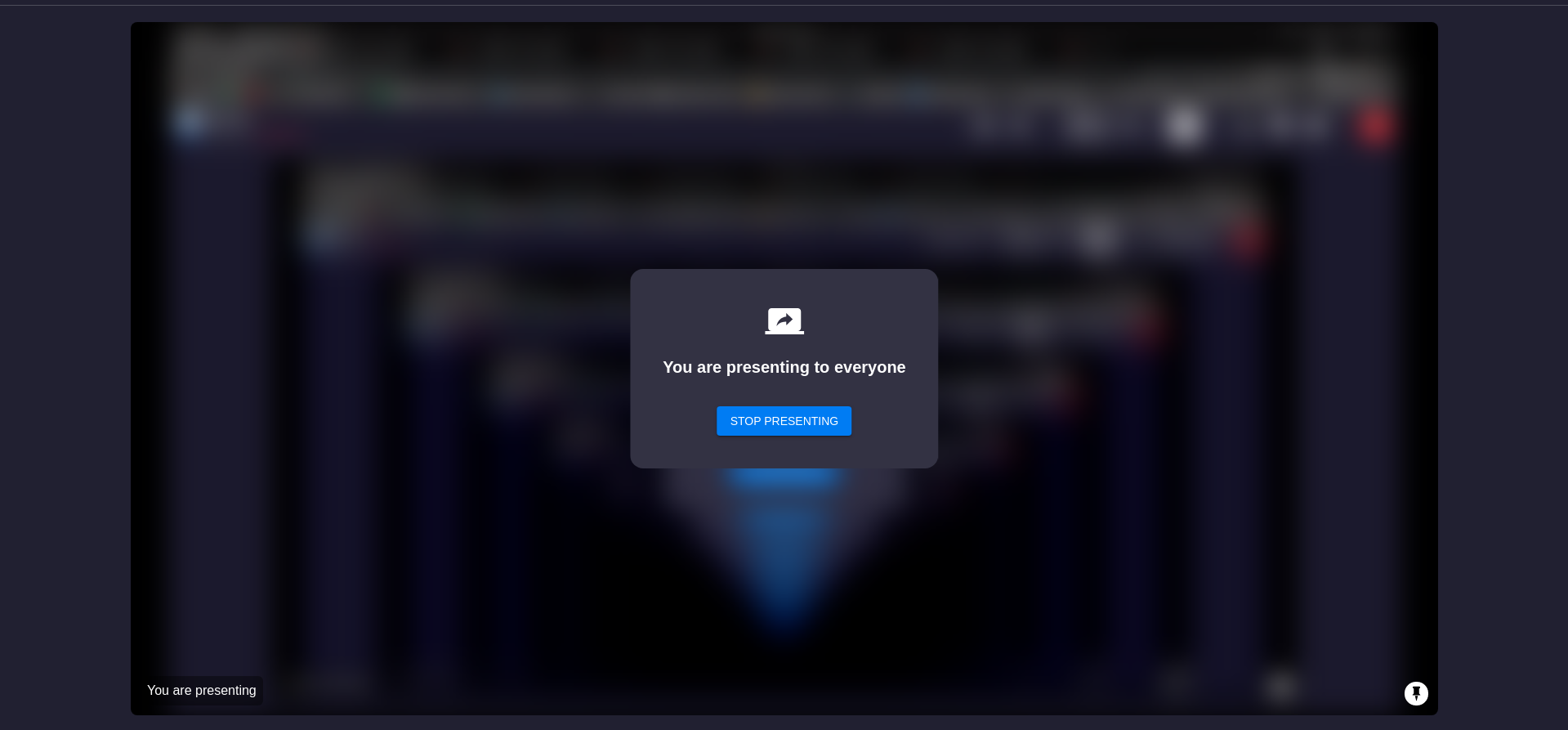 |
Event associated with HLS
-
onHlsStateChanged - Whenever the HLS state of the room changes, then
onHlsStateChangedevent will trigger. -
You can get the
livestreamUrlandplaybackHlsUrlof the HLS to play it on the Viewer side when the state changes toHLS_PLAYABLE.playbackHlsUrl- Live HLS with playback supportlivestreamUrl- Live HLS without playback support
Both playbackHlsUrl and livestreamUrl are optional, so unwrap them before use.
- Swift
class RoomViewController: ObservableObject {
    //...
        // Add event listeners and join the room
        room?.addEventListener(self)
    //...
}

extension RoomViewController: RoomEventListener {
    //...
    func onHlsStateChanged(state: HLSState, hlsUrl: HLSUrl?) {
        hlsState = state
        switch (state) {
        case .HLS_STARTING:
            print("HLS is Starting")
        case .HLS_STARTED:
            print("HLS is Started")
        case .HLS_PLAYABLE:
            print("HLS is Playable Now!")
            // once HLS is playable you will receive playbackHlsUrl and livestreamUrl
            let playableURL = hlsUrl?.playbackHlsUrl ?? ""
            let liveStreamURL = hlsUrl?.livestreamUrl ?? ""
        case .HLS_STOPPING:
            print("HLS is Stopping")
        case .HLS_STOPPED:
            print("HLS is Stopped")
        @unknown default:
            break
        }
    }
}
//...
Custom Template
With VideoSDK, you can also use your own custom designed layout template to livestream the rooms. In order to use the custom template, you need to create a template for which you can follow this guide. Once you have setup the template, you can use the REST API to start the livestream with the templateUrl parameter.
API Reference
The API references for all the methods utilized in this guide are provided below.
Got a Question?  Ask us on discord

