Setup HLS Player - iOS
In this guide, we will add a player that plays the HLS stream. Before starting this guide, make sure you have a VideoSDK room set up that you can join. To learn more about setting up a VideoSDK room, follow this quick start guide.
To play the HLS stream, we will use AVKit's VideoPlayer.
1. Setup player into your project
Step 1: Let's first add a common component for the video player.
import SwiftUI
import AVKit

struct HLSVideoPlayer: View {
    let url: URL
    let width: CGFloat?
    let height: CGFloat?

    @State private var player: AVPlayer = AVPlayer()

    var body: some View {
        ZStack {
            VideoPlayer(player: player)
                .frame(width: width ?? 400, height: height ?? 400)
                .background(Color.black)
                .onAppear {
                    setupPlayer()
                }
                .onDisappear {
                    player.pause()
                }
        }
    }

    private func setupPlayer() {
        let item = AVPlayerItem(url: url)
        player.replaceCurrentItem(with: item)
        player.play()
    }
}
Step 2: Now let's add the HLSVideoPlayer which will display livestreaming in RoomView.swift. For this, we will use the onHlsStateChanged event from the RoomEventListener protocol to identify if there is an active HLS.
import SwiftUI
import VideoSDKRTC

struct RoomView: View {
    //...

    var body: some View {
        //...
            VStack(spacing: 20) {
                //...
                if controller.role == .host {
                    //... view when role of joinee is host
                } else {
                    if ((controller.hlsState == .HLS_STARTED || controller.hlsState == .HLS_PLAYABLE) && controller.playbackURL != nil) {
                        HLSVideoPlayer(
                            url: URL(string: controller.playbackURL ?? "")!,
                            width: .infinity,
                            height: .infinity
                        )
                        .cornerRadius(12)
                        .padding()
                        Spacer()
                    } else {
                        Spacer()
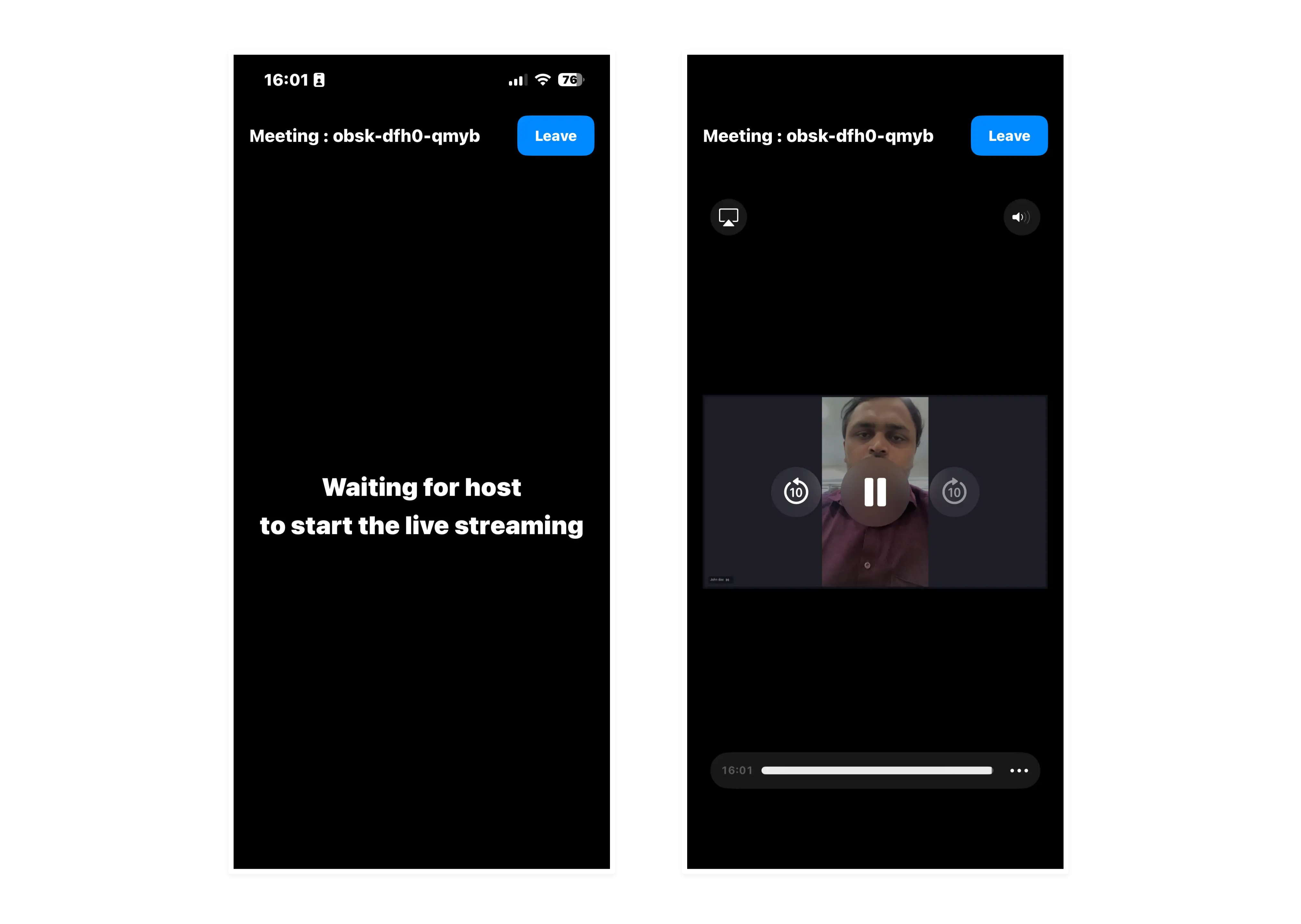
                        Text("Waiting for host\nto start the live streaming")
                            .font(.title)
                            .foregroundStyle(.white)
                            .bold(true)
                            .multilineTextAlignment(.center)
                        Spacer()
                    }
                }

                //...
            }
        }
        .navigationBarBackButtonHidden(true)
        .navigationBarHidden(true)
    }
    //...
2. Initialize player and Playing HLS stream
Now that the player is set up, play the HLS stream once it becomes playable. When the state in the onHlsStateChanged event of RoomEventListener changes to HLS_PLAYABLE, you get the playbackHlsUrl and livestreamUrl. Set the controller's playbackURL from it and the video player starts automatically. Until then, viewers see the label Waiting for host to start the live streaming.
- When you receive the
HLS_PLAYABLEstatus, you get 2 URLs:playbackHlsUrl- Live HLS with playback supportlivestreamUrl- Live HLS without playback support
Both URLs are optional Strings.
VideoSDK.createRoom(...) throws, so call it with try. join() is async throws, so call it with try await inside a Task.
//...
class RoomViewController: ObservableObject {
    //...
    @Published var playbackURL: String? = nil

    init(roomId: String, role: UserRole) {
        //...
        initializeRoom()
    }

    // MARK: - Room Initialization
    func initializeRoom() {
        do {
            room = try VideoSDK.createRoom(
                roomId: roomId,
                token: AUTH_TOKEN,
                participantName: "John doe",
                micEnabled: self.isMicOn,
                camEnabled: self.isWebcamOn,
                mode: self.role == .viewer ? .SIGNALLING_ONLY : .SEND_AND_RECV,
                multiStream: true
            )
        } catch {
            print("Setup failed: \(error)")   // ERROR_INVALID_PARAMETER for an empty token or room ID
            return
        }
        // Add event listeners and join the room
        room?.addEventListener(self)
        Task {
            do {
                try await room?.join()
            } catch {
                print("Join failed: \(error)")
            }
        }
    }
    //...
}

extension RoomViewController: RoomEventListener {
    //...
    func onHlsStateChanged(state: HLSState, hlsUrl: HLSUrl?) {
        hlsState = state
        switch (state) {
        case .HLS_PLAYABLE:
            playbackURL = hlsUrl?.playbackHlsUrl
        case .HLS_STOPPED:
            playbackURL = nil   // show the waiting label until the stream is playable again
        default:
            print("HLS State: \(state.rawValue)")
        }
    }
}
//...
API Reference
The API references for all the methods utilized in this guide are provided below.
Got a Question?  Ask us on discord

