Understanding Call Quality - iOS
When developing a video call app, customer satisfaction heavily depends on your app's video and audio quality and its fluctuation.
Call Quality
If we look at the video quality from the user's perspective, a good video quality can be defined as smooth and clear video, along with a crystal clear audio. If the same is viewed from the developer's perspective, a good video quality can be determined as a high resolution, high frame rate video with minimal latency along with a high bitrate audio with minimal audio loss.
Factors affecting Quality
When it comes to measuring the video and audio quality of a call, there are multiple variables to consider, and the most common factors which affect the video and audio quality are:
1. Network Bandwidth
- Network bandwidth is how much data a user's network can send and receive.
- If the bandwidth is low at participant side, he/she is likely to get pixelated or frozen video along with robotic voice or minor breaking in the audio.
- Frequent change in the network providers can also result in high fluctuation of the internet bandwidth, which can also result in poor quality video.
2. Latency
- Latency basically means the time it takes for data to transfer from one machine to another.
- If the room is hosted in the
Ohioregion and users join from theSingaporeregion, data takes longer to travel from one machine to another, so pick a server according to your user base. - To keep a live stream on servers in one region, use Geo Fencing.
3. CPU Usage
- CPU usage is also a deciding factor, as every audio and video stream going out or coming in has to be encoded or decoded, which requires a significant amount of computation.
- The higher the resolution and frame rate of the videos, the more computation is required, which can become the bottleneck for delivering good quality video.
- If the CPU is being consumed heavily, it can also result in a choppy or robotic audio.
4. Camera and Mic Quality
- The camera and microphone should capture good quality streams so that remote users don't get a low quality stream even if they have good network bandwidth.
Identifying the Quality Issues
In order to identify quality issues, VideoSDK collects multiple audio and video related metrics which can help in pinpointing the quality issues. Let's have a look at those metrics and understand what they indicate.
1. Resolutions and Framerates
-
Resolution and frame rate are key metrics for video quality in a video call app. Resolution refers to the number of pixels in a video image, while frame rate refers to the number of frames displayed per second.
-
Higher resolutions and frame rates can provide better video quality, but they also require more bandwidth and processing power. It's important to optimize these metrics for the devices and network conditions of your users.
-
For example, if most of your users are on mobile devices, a lower resolution and frame rate may be more appropriate to ensure smooth playback and minimize bandwidth usage.
-
If most of your users are on mobile and desktop devices, having higher resolution for desktop and mid-resolutions for mobile devices can help in improving the performance and quality as we will be saving the bandwidth on the mobile end.
2. Bitrate
-
Bitrate is the number of bits per second sent or received during the transmission of audio or video streams. Bitrate can be a key parameter to determine the quality of the audio or video streams, as it should be fine-tuned for each resolution to achieve the best match of performance and bandwidth utilization.
-
If the users are having excellent network conditions, higher bitrate can result in much better video quality but on the other hand, having very high bitrates on the mobile devices can result in heating issues due to high computation required to encode and decode the videos.
Example
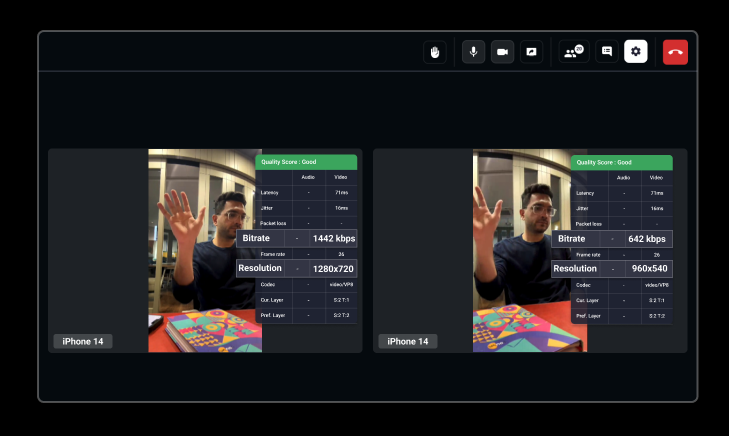
We joined using the same phone (iPhone 14), but the resolution and bitrate were different, first participant having resolution 1280x720 with bitrate 1442 kbps and second participant having resolution 960x540 with bitrate 642 kbps, so as we can see both participants' video appeared to be of equal quality even though resolution and bitrate are different.
3. Packet Loss
- Packet loss is a metric that indicates how many data packets are lost during transmission from the sender to the receiver. Packet loss can occur due to network congestion, hardware or software issues, or network latency. Higher packet loss can result in poor video and audio quality, as the missing packets can cause gaps or distortions in the media stream.
4. Jitter
-
The audio and video packets are sent out at random intervals over a specified time frame as they are being sent between the server and client. Nevertheless, jitter is produced when there is a variation in transmitting or receiving these data packets as a result of a faulty network connection.
-
Data packets can be delayed on the way to the participant, usually because the network is busy. They'll display as pixelated video on a video call or sound choppy, distorted, or robotic on a voice call as they arrive. They'll arrive at random intervals, creating jitter.
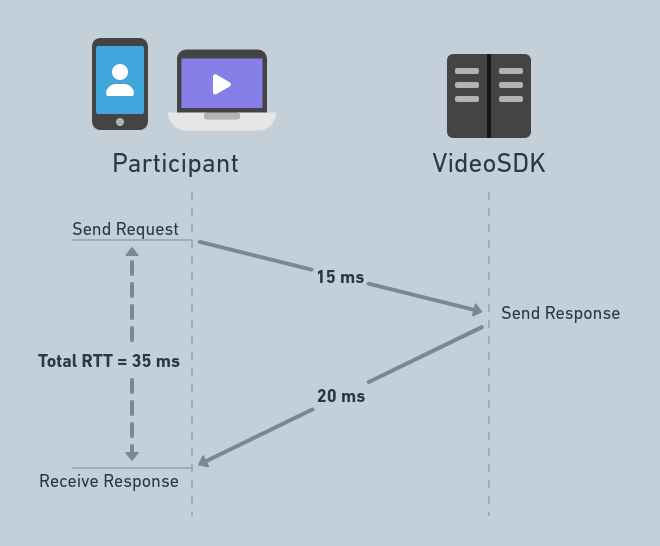
5. Round Trip Time (Latency)
-
Round trip time is the amount of time required to transmit the data packets to send or receive from the server. If the servers are located very far from the user's location, they can observe a high latency (delay).
-
With VideoSDK, this factor is taken care of as we automatically choose the nearest available server for participants. But if you are geofencing to a certain region, you should make sure that you choose the server which will be nearest to your users.
Checking Realtime Statistics
VideoSDK provides methods to check the realtime statistics of the audio and video of all the participants.
getVideoStats()
-
getVideoStats()returns an array of dictionaries containing the different quality parameters for video stream which can be accessed through theParticipantclass. It has one entry for a remote participant's video, and one entry for each simulcast layer of your own video. -
Each entry has values for the specific participant's video stream resolution and frame rate (
size), bitrate in kbps (bitrate), jitter in ms (jitter), round trip time in ms (rtt), and packet loss (packetsLostandtotalPackets, counted since the previous sample).
getAudioStats()
-
getAudioStats()returns an array of dictionaries containing the different quality parameters for audio stream which can be accessed through theParticipantclass. -
Each entry has values for the specific participant's audio stream bitrate (
bitrate), jitter (jitter), round trip time (rtt) and packet loss (packetsLostandtotalPackets).
getShareStats()
-
getShareStats()returns an array of dictionaries containing the different quality parameters for screen share stream which can be accessed through theParticipantclass. It is a throwing method, so call it withtry. -
Each entry has values for the specific participant's screen share stream resolution and frame rate (
size), bitrate (bitrate), jitter (jitter), round trip time (rtt), and packet loss (packetsLostandtotalPackets).
getShareAudioStats()
-
getShareAudioStats()returns an array of dictionaries containing the different quality parameters for the audio that a participant shares along with a screen share. The microphone is not included. -
Each entry has the same values as
getAudioStats(). The array is empty when the participant is not sharing audio.
These four methods return nil before you join the room, while it is reconnecting, and after you leave it. They return an empty array when the participant has no such stream, or no stats are available yet.
getTransportStats()
-
getTransportStats()returns a dictionary with the upload and download rate of the participant's network connection:sendholdsoutgoingBitrate(kbps) andtotalSentBytes, andreceiveholdsincomingBitrate(kbps) andtotalReceivedBytes. Use it to tell a network problem from a problem with a single stream. -
It asks the server for these numbers and waits for the answer, so call it off the main thread. It returns
niloutside the room, while it is reconnecting, or when the stats can't be read.
To show a participant's realtime stats in your app, read them about once a second. The values come as Any, so cast each one, for example videoStat["rtt"] as? Double.
let statsQueue = DispatchQueue(label: "call-stats")

func logStats(of participant: Participant) {
    statsQueue.async {
        if let videoStats = participant.getVideoStats() as? [[String: Any]],
           let videoStat = videoStats.first {
            let bitrate = videoStat["bitrate"] as? Double ?? 0
            let rtt = videoStat["rtt"] as? Double ?? 0
            let packetsLost = videoStat["packetsLost"] as? Int ?? 0
            print("bitrate: \(bitrate) kbps, rtt: \(rtt) ms, packetsLost: \(packetsLost)")
        }
        if let transportStats = participant.getTransportStats() as? [String: Any],
           let send = transportStats["send"] as? [String: Any] {
            print("upload: \(send["outgoingBitrate"] as? Double ?? 0) kbps")
        }
    }
}
Quality analysis Graphs
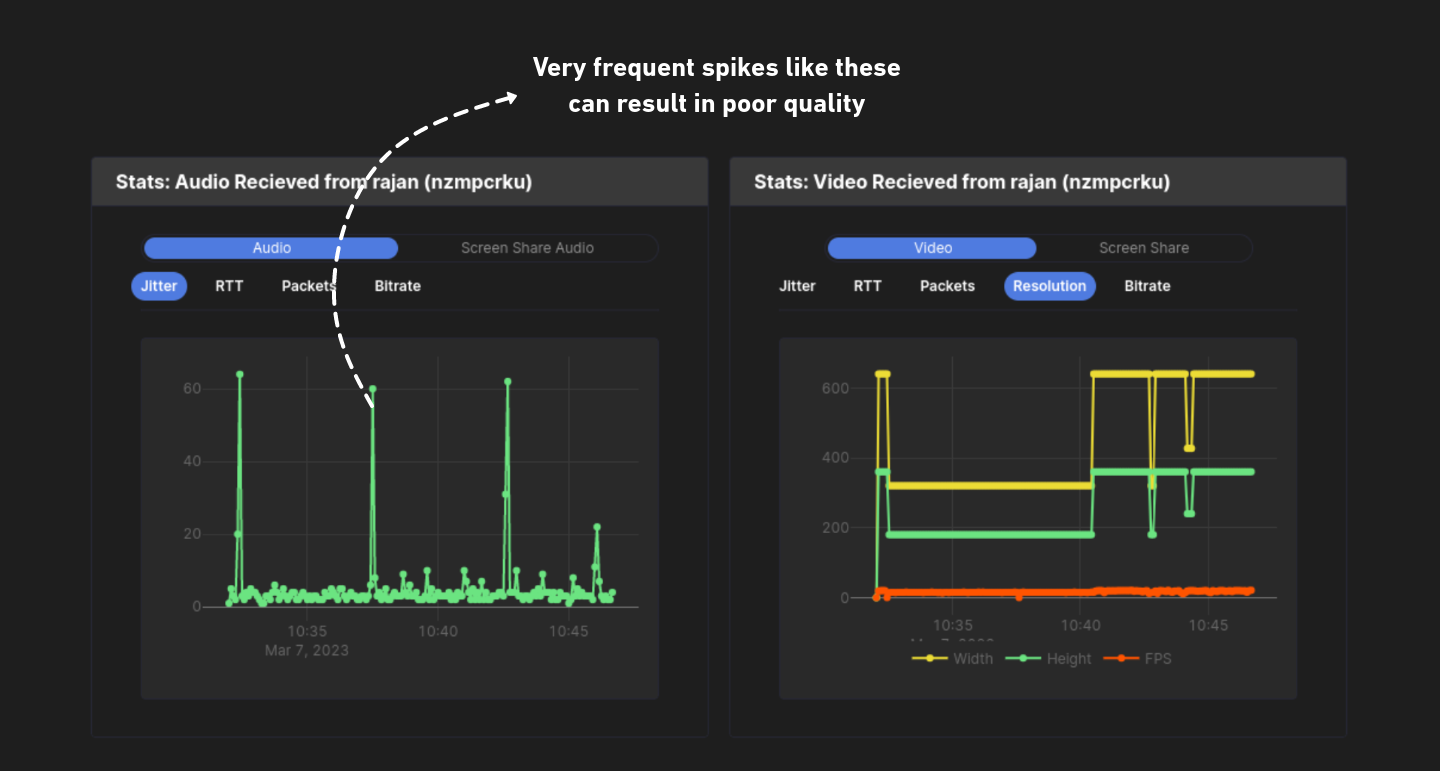
For all the sessions taken using the VideoSDK, you can find the quality analysis graphs from the VideoSDK Dashboard which can help you visualize the data you are seeing in realtime and identify the spikes of a few parameters happening during the call which can help figure out the reason for the quality issue.
API Reference
The API references for all the methods and events utilised in this guide are provided below.
Got a Question?  Ask us on discord

