Optimize for Low Bandwidth Networks - Flutter
When participants join a call from a weak or unstable network, the available bandwidth may not be enough to support the call at its default media settings. VideoSDK provides several controls that you can use to adapt the experience to changing network conditions.
This guide covers recommended approaches for managing the media each participant sends and receives, including choosing the video quality to publish, controlling incoming video, and keeping participants informed as conditions change. These options can help you reduce bandwidth usage and maintain a reliable call experience.
Before the Call
A pre-call screen is where the participant confirms permissions and picks the camera and microphone to use. On a connection you expect to be weak, it is also the point at which you choose the media configuration the participant joins with.
Prepare the Participant
-
Use the pre-call screen to request permissions and confirm device selection before the room is created, so the participant does not discover a problem after joining. See Precall Setup.
-
Choose the media configuration at this point and pass it to
createRoom(). A participant who joins on a constrained connection with a lighter configuration starts the call in a usable state, rather than starting at a high quality that the connection cannot sustain. -
Where you already know the conditions your participants call from, for example a regional deployment or a known field environment, set those defaults for every participant rather than leaving the configuration at its default.

There is no connection measurement available before the call on Flutter. Choose the starting configuration from what you know about your participants, then adapt during the call using the events and controls described in Improve the In-Call Experience.
Configure the Room
Use the following settings on createRoom() to control how a participant publishes and receives media. Select the settings based on the participant's network conditions and the requirements of your application.
Configure Published Media
- Use
customCameraVideoTrackandcustomMicrophoneAudioTrackto pass media tracks configured for the participant's connection. If these are not provided, VideoSDK uses its default track configuration. - Create the camera track with
VideoSDK.createCameraVideoTrack()and the microphone track withVideoSDK.createMicrophoneAudioTrack(). Both accept anencoderConfig, while the camera track also acceptsfacingMode,bitrateMode,maxLayer, andcodec. encoderConfigselects the capture resolution fromCustomVideoTrackConfig, which ranges fromh90p_w160pup toh2160p_w3840pand defaults toh720p_w1280p.- For constrained connections, consider
BitrateMode.BANDWIDTH_OPTIMIZEDfor the camera to reduce bandwidth usage at the selected resolution.BitrateMode.BALANCEDis the default, andBitrateMode.HIGH_QUALITYraises the bitrate for connections that can support it. See Optimize Video Tracks for the bitrate used by each configuration and Optimize Audio Track for the available audio configurations. - You can also configure
codecto suit your application's requirements. Codec support varies by device, so see Video Codecs before changing it. - To enforce an upper limit on the amount a participant can send, set Maximum Send Bitrate Per Participant for the API key in the VideoSDK Dashboard. The limit applies to every session using that API key and overrides higher bitrate settings configured in your application. See Optimize Audio and Video Usage for details.
Keep Simulcast Enabled
- Keep
multiStreamenabled, which is the default. WithmultiStreamset totrue, the camera publishes multiple video quality layers. VideoSDK can then deliver an appropriate layer to each participant based on the receiving conditions and requested video quality. - With
multiStreamset tofalse, the camera publishes a single video layer at the configured resolution. All participants then receive that same published layer, even when their network conditions or video layouts differ. multiStreamis also what the controls in Optimize Incoming Video act on. Adaptive subscriptions,setViewPort(), andsetQuality()all choose between published layers, so they have nothing to select from on a single-layer track.maxLayercaps how many layers a track publishes and defaults to3, but the capture resolution sets the real ceiling. Three layers need a capture of at least 960 pixels on its longest side, a capture from 480 to 959 pixels publishes two, and anything smaller publishes one whatevermaxLayeris set to. Choose theencoderConfigfirst, and treatmaxLayeras a way to encode one stream fewer where that costs more than the middle layer is worth.- See Simulcast (Adaptive Bitrate) for more information.
Simulcast is produced on VP8 only. Supplying a camera track that sets multiStream together with VideoCodec.VP9, VideoCodec.AV1, or VideoCodec.H264 falls back to single-layer encoding and reports error 3026 (ERROR_MULTISTREAM_NOT_SUPPORTED). Keep the camera on VideoCodec.VP8, the default, when you want every receiver to get a layer suited to its own connection.
Set the Ceiling for Received Video
maxResolutiononcreateRoom()sets the highest layer a participant can receive, and defaults to'sd'on Flutter. On'sd',setQuality('high')reaches the middle layer and'low'and'med'both resolve to the lowest layer.- Leave the default on constrained connections. It keeps incoming video modest without any further work, which suits a call where most participants are on weak networks.
- Set
'hd'where the layout genuinely needs the top layer, for example a full-screen speaker view on a connection that can sustain it. Without it,setQuality('high')cannot reach the highest published layer.
Control Media Consumption
- For large calls, consider
autoConsume: falsewhen the application needs explicit control over which streams each participant receives. With this setting, streams are consumed only when requested, allowing the application to subscribe only to the participants required by the interface. - Use
consumeWebcamStreams(),consumeMicStreams(),stopConsumingWebcamStreams(), andstopConsumingMicStreams()onParticipantas participants enter and leave the visible part of the interface.
Choose the Participant's Media Mode
Use the mode parameter of createRoom() to control whether a participant publishes and receives media.
| Mode | Description |
|---|---|
Mode.SEND_AND_RECV | Publishes and receives media. This is the default. |
Mode.RECV_ONLY | Receives media without publishing. Consider this for participants who only need to watch or listen, or when upload bandwidth is limited. |
Mode.SIGNALLING_ONLY | Does not publish or receive media. Consider this when the participant does not need real-time media. |
- Choose a mode that matches the participant's role and network conditions.
- Use
changeMode()to switch between modes during the meeting.
Keep the Default Transport Protocol
createRoom()accepts apreferredProtocolofPreferredProtocol.UDP_ONLY,PreferredProtocol.UDP_OVER_TCP, orPreferredProtocol.TCP_ONLY. The default isUDP_OVER_TCP, which prefers UDP and falls back to TCP where UDP is blocked. See Initialise Meeting.- Keep the default on weak networks. It already handles restrictive mobile networks that block UDP, without giving up UDP where it is available.
TCP_ONLYis worth reaching for only where UDP is known to be unavailable. Real-time media on a lossy connection is generally better served by UDP, because retransmissions and in-order delivery add delay to media that is no longer useful by the time it arrives.
Improve the In-Call Experience
Network and media conditions can change during a meeting. Use VideoSDK events and statistics to keep participants informed when the connection is reconnecting, video quality changes, or media conditions affect their experience.
Some in-call controls require an active room. While the connection is reconnecting, changeMode(), enableAdaptiveSubscription(), pauseAllStreams(), resumeAllStreams(), and a stream's pause() and resume() do nothing and report error 3027 (ERROR_MEETING_RECONNECTING). This is worth planning for on a weak network, because a drop is exactly when your application is most likely to attempt an adjustment. Hold the intended change and apply it once Events.roomStateChanged reports CONNECTED. setQuality(), setViewPort(), pin(), and unpin() are not blocked this way and can be applied at any time.
Keep Participants Informed
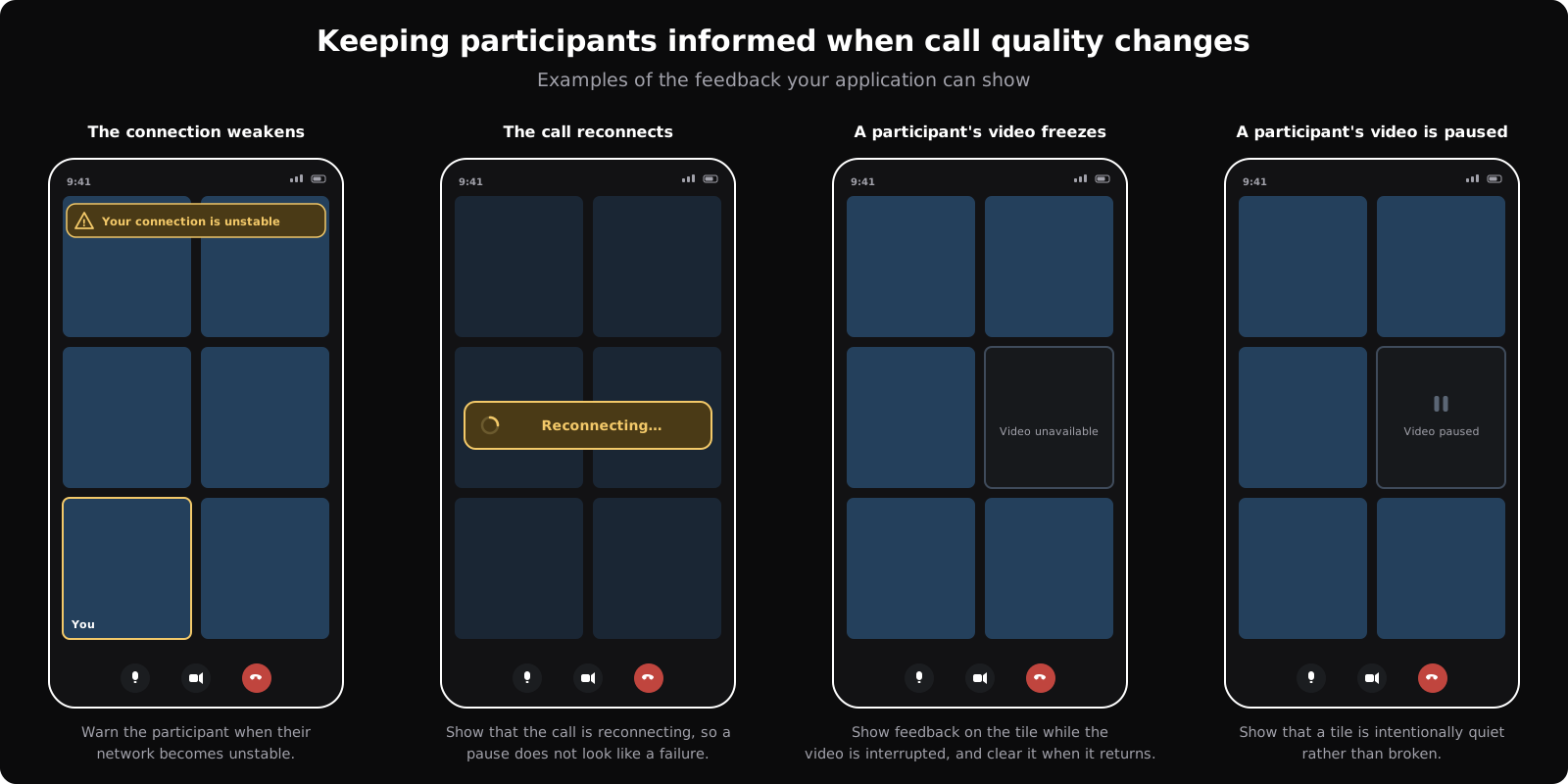
Use room and media events to provide clear feedback when conditions change during the meeting. Depending on your application, this can be a snackbar, banner, status indicator, or other in-call message.
| Signal | What it tells you | Recommended response |
|---|---|---|
Events.qualityLimitation | Subscribed on the room. Reports a limitation affecting the local participant's outgoing media, with a type of bandwidth, congestion, or cpu and a state of detected or resolved. See Monitoring Network Quality. | When a limitation is detected, consider informing the participant. For bandwidth- or congestion-related limitations, you can also reduce the quality of the published video, for example by replacing the camera track with a lighter one as described in Configure Published Media. A connection sitting near its limit can report detected and resolved in turn, so hold a short delay before showing or clearing the message rather than binding it directly to the event. |
Events.roomStateChanged | Subscribed on the room. Indicates a change in the room connection state, including RECONNECTING when the connection is interrupted. See Room Connection Events. | Show a clear reconnecting message or status indicator so the participant knows the connection is being restored. |
Events.streamStateChanged | Subscribed on the stream. Reports the state of a remote participant's video or screen-share stream as active, freeze-detected, freeze-resolved, stuck, or ended. See Stream Events. | Show feedback on the participant's tile while their stream is frozen or stuck, so the interruption is explained rather than appearing as a broken tile. Clear the feedback when the stream reports freeze-resolved or active. |
Events.streamPaused and Events.streamResumed | Subscribed on the participant. Reported only when adaptive subscriptions pause or resume a stream, with the kind of stream and the reason. See Scalability for Large Participant. | Show feedback on the tile while its video is paused, so the participant understands the tile is intentionally quiet rather than broken. |
Events.videoQualityChanged | Subscribed on the participant. Indicates that a participant has switched to a different simulcast layer. See Simulcast (Adaptive Bitrate). | When relevant to your interface, show a video-quality indicator or other feedback so the participant understands that the received video quality has changed. |
getVideoStats() and getAudioStats() | Provide statistics for a participant's media, including values such as bitrate, rtt, jitter, and packetsLost. getShareStats() provides the same for a screen-share stream. See Understanding Call Quality. | Use these statistics when your application needs to identify or display more detailed information about the quality of a stream. |
Optimize Incoming Video
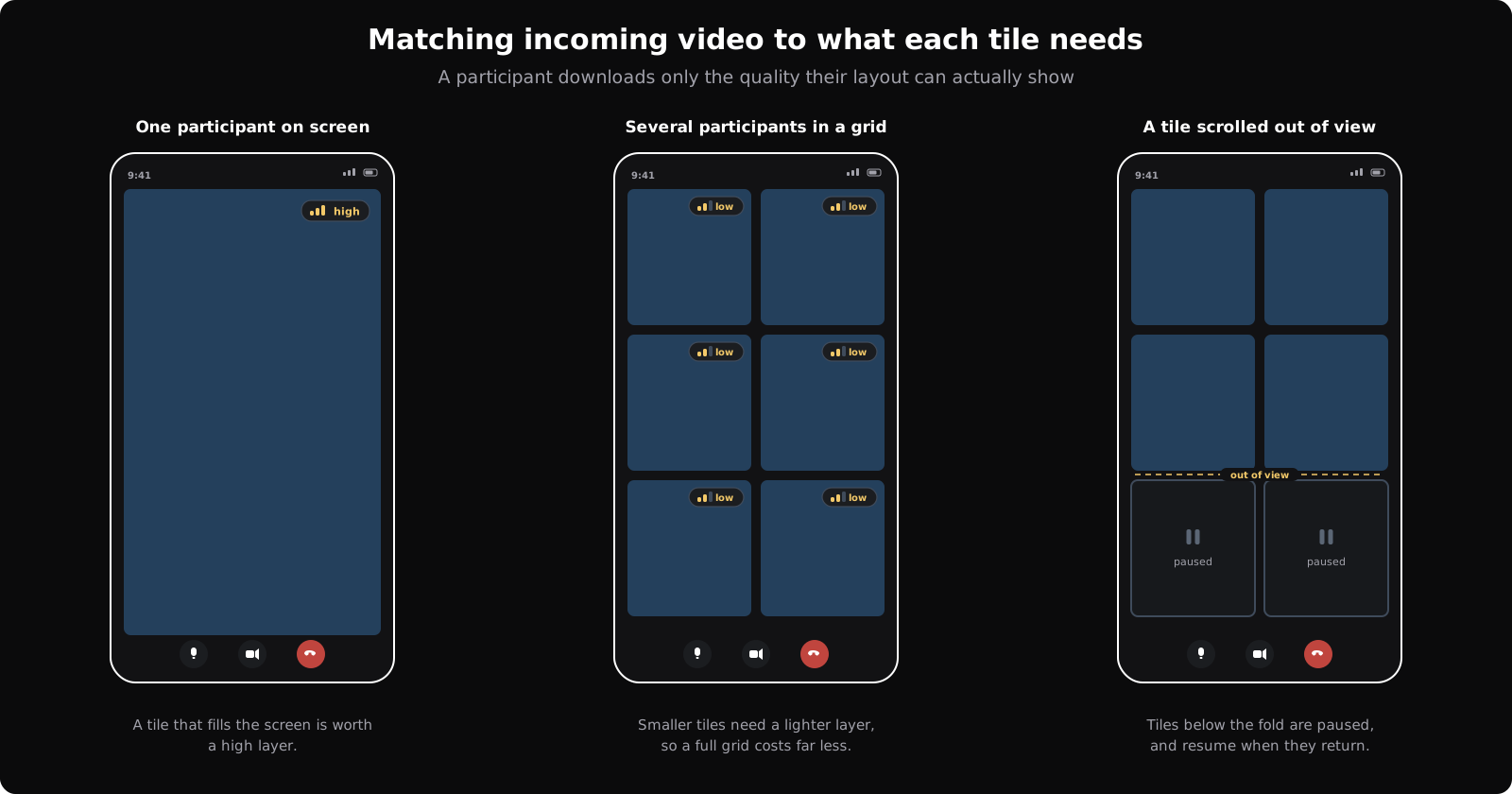
Incoming video is usually the largest part of a participant's bandwidth usage, and a participant only benefits from the quality their layout can actually display. Video is rendered with RTCVideoView, which does not adjust the requested quality on its own, so match the incoming video to each tile yourself using the controls below.
| Recommendation | How |
|---|---|
| Enable adaptive subscriptions | Call enableAdaptiveSubscription() on the room to let VideoSDK prioritise streams for you. Under bandwidth constraints it pauses muted participants' video first, then the least dominant speakers, and keeps pinned participants at the highest quality. See Scalability for Large Participant. |
| Report each tile's size | Call setViewPort() with the dimensions of the widget rendering the participant, and again when the layout changes. VideoSDK then selects the layer that suits the display area, so a thumbnail does not receive a full-resolution stream. |
| Control quality yourself | Where you need a manual override, use setQuality() with 'low', 'med', or 'high' to request a specific layer for a participant. The ceiling it can reach depends on maxResolution, as described in Set the Ceiling for Received Video. |
| Pause streams that are not visible | Use pause() on a stream while a participant is outside the visible area and resume() when they return. This matters most in paginated or scrolling layouts, where tiles leave the screen but keep receiving video. See Grid with Pagination. |
| Pause a whole media kind | Use pauseAllStreams() with a kind of 'audio', 'video', or 'share' to stop receiving one kind entirely, and resumeAllStreams() to restore it. Omitting kind applies to every kind. Consider this for an audio-only fallback when a connection cannot sustain video. |
| Prioritise the participants that matter | Use pin() with PinType.CAM, PinType.SHARE, or PinType.SHARE_AND_CAM to mark the participants your layout gives prominence to, and unpin() when that changes. Pinned participants are kept at the highest quality while adaptive subscriptions reduce the rest. |
Optimize Data Transfers
Call media is not the only traffic using the participant's connection. Image captures and application updates also consume bandwidth, so keeping these transfers efficient can help preserve bandwidth for the call, especially on weak networks.
Capture Images Efficiently
captureImage()captures a frame from the local participant's camera at its capture resolution. It can only be called on the local participant, so the image always comes from the camera itself rather than from a received video layer.- For use cases such as document capture or identity verification, this means the image quality does not depend on the published video quality. There is no need to raise the published quality in order to obtain a higher-resolution image.
- Pass
widthandheightwhen a smaller image is sufficient. If these are not provided, the dimensions of the local camera stream are used.
To obtain an image from another participant, request it over pubSub and have that device capture and transfer it:
| Recommendation | How |
|---|---|
| Request the capture from the camera owner | Publish a request on a pubSub topic, then capture the image locally on the device that receives it. See Image Capturer. |
| Transfer the image through temporary storage | Upload the Base64 image with uploadBase64File(), share the returned URL over pubSub, and retrieve it with fetchBase64File(). This keeps a large payload off the pubSub channel, which other in-call updates share. See File Sharing. |
Optimize Message Delivery
Chat, reactions, application state, and other updates can also use bandwidth during a call. Choose the delivery options based on how important the data is and how quickly it becomes outdated.
| Use case | Recommendation |
|---|---|
| Cursor positions, typing indicators, or other frequently changing updates | Set realtimeOverflow to PubSubRealtimeOverflow.drop on PubSubSubscribeOptions so the newest updates are delivered and stale ones are discarded rather than queued. |
| Updates that should survive a brief delay | Keep realtimeOverflow at PubSubRealtimeOverflow.queue, which is the default, and set maxQueue so a subscriber that falls behind can catch up. |
| Persisted messages delivered when a participant joins | Set oldMessageLimit on PubSubSubscribeOptions when the full message history is not required, and newMessageLimit to cap how many live messages are accepted at a time. |
| Updates intended for specific participants | Set sendOnly on PubSubPublishOptions so the message is delivered only to the participant IDs that need it, rather than to everyone in the call. |
| Messages that do not need to reach late joiners | Leave persist disabled on PubSubPublishOptions, which is the default, so the message is not stored and replayed to participants who join later. |
See PubSub for the full set of publish and subscribe options.
API Reference
The API references for all the methods and events utilized in this guide are provided below.
- createRoom()
- createCameraVideoTrack()
- createMicrophoneAudioTrack()
- BitrateMode
- CustomVideoTrackConfig
- Mode
- changeMode()
- enableAdaptiveSubscription()
- pauseAllStreams()
- resumeAllStreams()
- setQuality()
- setViewPort()
- captureImage()
- consumeWebcamStreams()
- stopConsumingWebcamStreams()
- consumeMicStreams()
- stopConsumingMicStreams()
- uploadBase64File()
- fetchBase64File()
- getVideoStats()
- getAudioStats()
- getShareStats()
- pin()
- unpin()
- pause()
- resume()
- Events.qualityLimitation
- Events.roomStateChanged
- Events.streamStateChanged
- Events.streamPaused
- Events.streamResumed
- Events.videoQualityChanged
- PubSubPublishOptions
- PubSubSubscribeOptions
Got a Question?  Ask us on discord

